We’ve lost count of the number of readers who’ve told us “oh, it’s backed up” with total confidence, only to discover during a repair or an upgrade that the photos from a recent wedding or a kid’s first day of school never actually made it anywhere. Android’s backup situation isn’t broken exactly. It’s just scattered across three or four different settings menus, and most phones ship with the easy option half-switched-on, which is almost worse than nothing because it breeds false confidence.
This is the bit of phone ownership that nobody enjoys thinking about until the exact moment they need it, usually when a screen’s shattered, a phone’s been nicked from a café table, or it’s simply time to trade up. So let’s get it sorted properly, because there’s a real difference between “my phone backs itself up” and “I could lose this phone in the Yarra tomorrow and recover everything that matters within the hour.”
What actually needs backing up, and what doesn’t
Not everything on your phone is equally precious, and treating it all the same is how people end up paying for cloud storage they don’t need while still losing the one folder they actually cared about.
Photos and videos matter most for most people, full stop. Text messages and call logs matter a lot if you use them as a de facto diary or for work records, less if you don’t. App data, meaning your actual progress in a game or your settings in a banking app, mostly re-downloads and re-logs-in fine, though some loyalty-app points histories and two-factor authentication app setups are the exception that genuinely burns people, which we’ll come back to. And then there’s the stuff that doesn’t need backing up at all because it lives somewhere else already, like anything inside The Best Tablets in Australia in 2026 territory where you’re syncing across a tablet and a phone through the same Google account anyway.
Google’s own backup, and where it quietly falls short
Most Android phones sold in Australia, whether it’s a Samsung Galaxy, a Google Pixel or something from Oppo or Motorola, lean on Google’s built-in backup through your Google Account. Under Settings, then System, then Backup (the exact wording moves around depending on the phone maker’s skin), you’ll find a toggle for backing up app data, call history, device settings and contacts to Google Drive. Photos are handled separately through Google Photos, which has its own setting for whether it backs up in “storage saver” quality or original quality.
That separation is where people get caught out. We’ve seen plenty of phones where the general backup toggle is on, so the owner assumes photos are covered, when in fact Google Photos backup was switched off months ago, maybe after a storage warning popped up and got dismissed without a second thought. It’s worth opening Google Photos directly, tapping your profile photo in the corner, and checking the backup status rather than trusting the general settings screen to tell the whole story.
Google gives everyone 15GB of free storage shared across Gmail, Drive and Photos, which fills up faster than people expect once a few years of phone photos pile in. At that point you’re looking at a Google One subscription, typically somewhere in the $30 to $50 a year range for 100GB at the time of writing, which is cheap insurance against losing a decade of family photos.
Samsung, Oppo and the manufacturer backup layer
If you’re on a Samsung phone there’s a second backup system sitting alongside Google’s, called Samsung Cloud, and it handles some things Google doesn’t bother with, like certain home screen layouts and some Samsung-specific app data. We reckon this is one area where Samsung’s done something genuinely useful rather than just adding clutter, because switching phones within the Samsung family (say, moving from an older Galaxy A to a newer Galaxy S) tends to bring across far more of the “feel” of your old phone than a bare Google restore does.
The catch is that Samsung Cloud and Google backup aren’t always talking to each other, and relying on both without understanding what each one actually covers is how gaps appear. Our honestly mildly contrarian take here: we think most people would be better served switching off manufacturer-specific cloud backups entirely and just using Google’s plus a manual once-a-year full copy to a laptop, because a single, simpler system you actually understand beats two systems you’re vaguely hoping are covering each other’s blind spots. It’s less neat on paper, but it’s the kind of setup you can explain to a parent or a teenager over the phone without a screen share.
The apps that need their own backup plan
Three categories of app routinely catch people out, and none of them are covered properly by the general Android backup.
- Authenticator apps for two-factor authentication, where losing the phone without exporting backup codes first can lock you out of banking and email for days. Most authenticator apps now have an export or cloud-sync option buried in settings, and it’s worth checking ours against the general advice in Two-factor authentication: SMS vs apps vs security keys before you need it in a panic.
- Messaging apps like WhatsApp and Signal, which keep their chat history separate from both Google’s backup and each other, usually requiring their own in-app backup toggle pointed at Google Drive.
- Anything tied to a buy-now-pay-later account, a crypto wallet, or a password manager, where the recovery phrase or seed, not the app itself, is the thing you genuinely cannot afford to lose. Write it down. On paper. Somewhere that isn’t a photo on the same phone you’re trying to back up.
For students, parents and tradies, the priorities differ
A uni student juggling assignments and a part-time job cares most about not losing lecture recordings and group chat threads the week before exams, so the thing worth checking isn’t storage capacity, it’s whether cloud backup is actually running on university Wi-Fi, which sometimes blocks background sync. Worth a look alongside our guide on How to choose a laptop for university in Australia if the phone and laptop are meant to be working as a pair.
Parents setting up a phone for a kid under the new eSafety Commissioner social media age rules have a slightly different job: backing up isn’t just about photos, it’s about being able to see and restore parental control settings if a phone gets reset or replaced. We’ve written separately about what the Australia’s Social Media Age Restriction Laws actually require, and it’s worth pairing that with whatever backup and device management profile you’ve set up, because losing those settings in a factory reset is a common and avoidable headache.
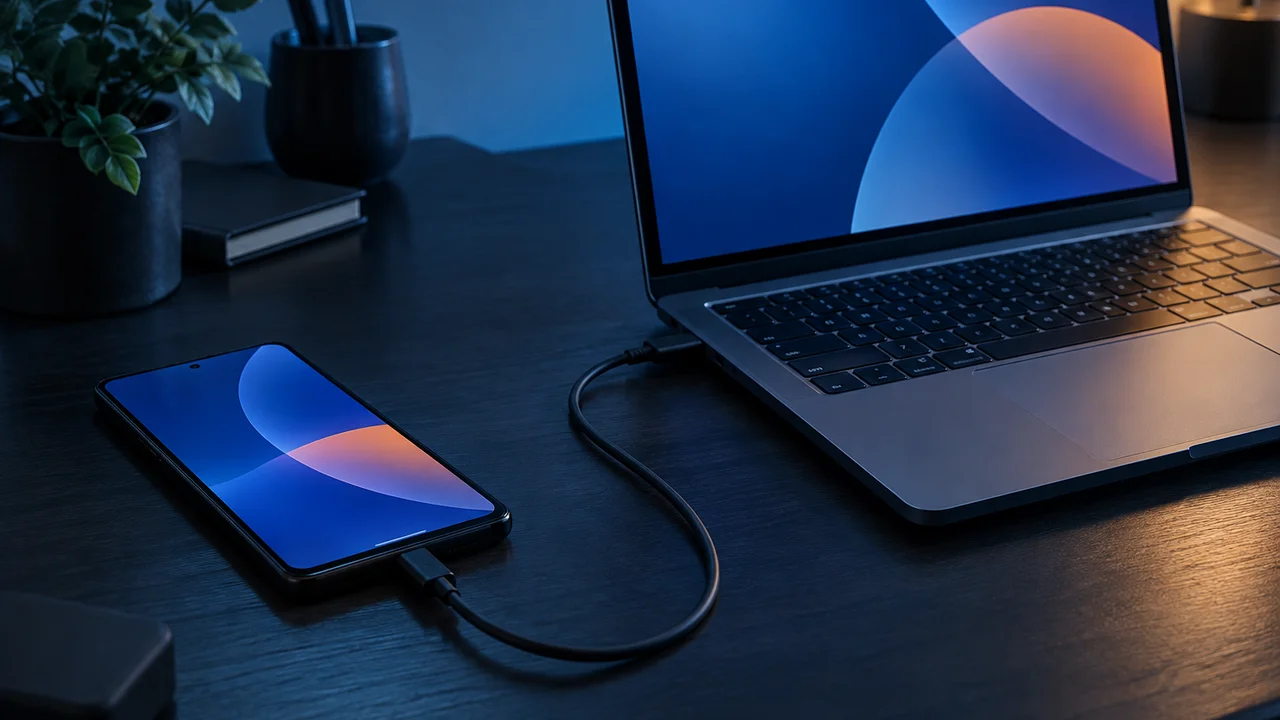
Tradies and anyone using their phone as a work tool, invoicing, photos of a job site, receipts for the tax return, should treat the phone less like a phone and more like a filing cabinet that happens to make calls. For that crowd we’d actually argue cloud backup isn’t enough on its own; a quarterly manual copy of photos and documents to a laptop or an external drive is the boring, unglamorous habit that saves a business owner’s bacon the day a phone goes missing from a ute.
When you’re about to repair, sell or trade in a phone
This is the moment backups get tested for real, and it’s also when people rush. Before handing a phone over for a screen repair, whether that’s at a manufacturer-authorised centre or an independent shop, back up fully and consider removing your SIM and any SD card rather than trusting it’ll be handed back. We’ve covered the broader decision of whether to repair or upgrade in Phone Repair or Replace: What Australians Should Know, and the backup step applies whichever way that decision goes.
Before trading in or selling, do a factory reset only after confirming the backup actually restored properly on another device, not just that it “ran”. We’d genuinely recommend doing a test restore onto a spare phone or even a borrowed one if you can, because a backup that completes without error isn’t the same as a backup that restores cleanly. The ACCC’s guidance on consumer guarantees is also worth knowing if a repair shop damages your data or device during a job; a repairer causing avoidable data loss isn’t something you just have to wear.
Wi-Fi, mobile data and the backup that never finishes
A huge number of “my backup isn’t working” complaints come down to one thing: the phone is set to only back up over Wi-Fi, and the backup is large enough that it never finishes before the phone’s picked up and carried out the door again. Check the sync settings inside Google Photos and Drive for a toggle allowing backup over mobile data, at least temporarily, if you’re between home Wi-Fi networks or relying on patchy connectivity. If your home internet itself is the bottleneck, our comparison of Mesh WiFi Systems Compared: Best for Australian Homes in 2026 is worth a look, because a backup that stalls every night because the phone’s at the far end of the house from the router is a fixable, physical problem, not a software one.
Getting the backup actually right
Our honest view, after watching this go wrong for enough people, is that “automatic” backup on Android is reliable for roughly 90 per cent of what matters and genuinely unreliable for the other 10 per cent, and that 10 per cent is exactly the stuff people are devastated to lose. The fix isn’t more apps or more subscriptions. It’s five minutes, twice a year, actually opening Google Photos, Google Drive and Settings and checking each is doing what you assume it’s doing, plus writing down recovery codes for anything financial the old-fashioned way.
Do that, and the day your phone goes into a repair shop, gets sold, or simply gives up the ghost stops being a crisis and becomes what it should be: an afternoon’s mild inconvenience while everything that matters quietly reappears on the next device.
For official guidance on protecting accounts tied to your backups, the Australian Cyber Security Centre’s device security guidance and the OAIC’s guidance on personal information and privacy rights are both worth bookmarking alongside your backup settings, not just your passwords.
— Priya Raman, Reviews Editor, Tech Geek