Orientation week brochures love to list minimum laptop specifications. Most of them are years out of date and written by someone in IT services who last bought a laptop during a Windows 7 refresh. A laptop for university doesn’t need to be powerful so much as it needs to survive three or four years of being shoved into a backpack, left on a library desk at RMIT or the University of Sydney, and occasionally knocked off a chair by a flatmate.
We get asked some version of this question every February and again every October, when parents and school leavers start actually pricing things out. Our answer has shifted a little over the years, and it’s more contrarian than most university IT departments would like: for the vast majority of degrees in this country, the processor matters far less than the people selling laptops want you to believe. Battery life, keyboard quality and weight make or break the experience. Raw grunt rarely does.
What actually matters day to day
Think about what a typical day on campus looks like. Lectures, tutorials, a few hours in the library, maybe a group assignment session at a café near campus. Across all of that, the laptop needs to last from an 8am lecture to a 6pm tutorial without hunting for a power point, because lecture theatres at most Australian universities still have a frustrating ratio of seats to outlets.
That’s why we’d put battery life first, screen and keyboard second, and processor a distant third for most arts, commerce, nursing, law and education students. Engineering, data science, architecture and some design courses are the exception, and we’ll get to those.
Weight matters more than people expect too. A laptop that’s fine at home on a desk feels very different after being carried across a kilometre of campus pathways between lectures, textbooks and a water bottle doing most of the damage to your shoulder, not the laptop. Anything under about 1.5 kilograms disappears into a bag; anything over 2 kilograms announces itself by the end of semester.
Our one-line verdict: buy for the backpack, not the benchmark chart.
Windows, Mac or Chromebook
This is the question that causes the most arguments at the dinner table before Orientation Week, and honestly none of the three answers is wrong.
Windows laptops remain the safest default because university-supplied software, from statistical packages to specialist engineering tools, is overwhelmingly built for Windows first. If your course has a prescribed application list, check it before anything else; some nursing and science degrees still require specific Windows-only software for clinical simulations or lab reporting.
MacBooks have genuinely good battery life and build quality, and Apple’s own M-series chips (the current generation, not the older Intel MacBooks some families still have lying around) run cool and quiet, which matters in a lecture theatre. The trade-off is price and occasional compatibility friction with niche university systems, though this has improved a lot since Microsoft 365 and most browser-based platforms run identically either way. We’ve found Mac users adapt fine provided their course doesn’t require Windows-specific software.
Chromebooks are worth a proper look for arts, humanities and commerce students who live mostly in a browser, Google Docs or Microsoft 365’s web apps, and don’t need heavy software installed locally. They’re light, cheap, and the battery life on recent models is excellent. The catch is storage and offline flexibility; if your course expects you to run desktop software rather than web apps, a Chromebook will frustrate you by week three.
The processor question, and why we’re less fussed than most reviewers
Here’s our mildly contrarian bit. Most buying guides spend paragraphs comparing processor generations as though a commerce student doing spreadsheets and essays needs the same chip as someone training machine learning models. They don’t.
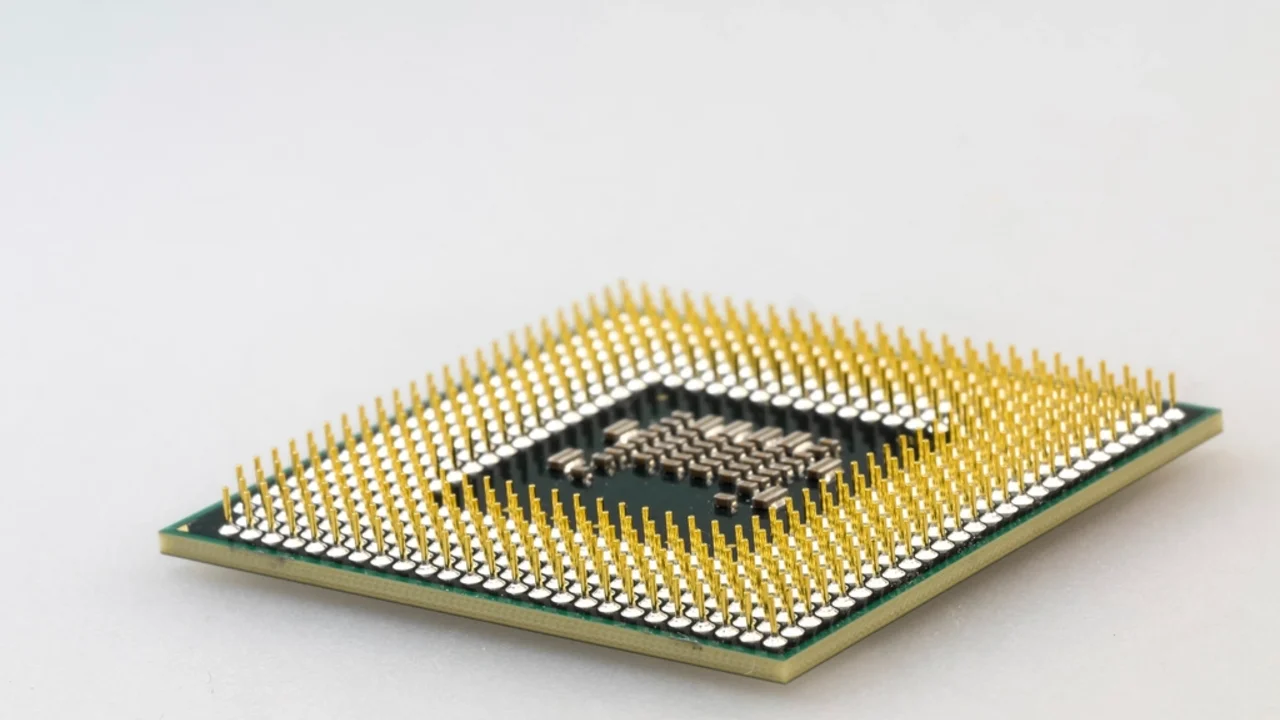
Current mid-range processors from Intel, AMD and Apple, even the ones marketed as “entry level,” comfortably handle web browsing, word processing, video calls, Microsoft 365 and most lecture-recording software without breaking a sweat. We’ve tested enough of these machines over the years to say the difference between a mid-range chip and a top-tier one is invisible for these tasks. It shows up in battery life and fan noise more than speed.
Where it does matter: engineering students running CAD software, architecture students working in 3D modelling tools, data science and computer science students compiling code or running local machine learning workloads, and some design students doing video editing. If that’s you, our Intel Lunar Lake vs Apple M4 vs Snapdragon X Elite comparison is a decent starting point for understanding which chip families suit heavier workloads and which are optimised purely for battery life.
For everyone else, spend the money saved on a better screen, more RAM or a longer warranty instead of a faster chip you’ll never fully use. This is a sceptical, dare we say boring, cost base, 16 gigabytes of RAM over 8 gigabytes is a better three-year investment than an upgraded processor tier, because RAM affects how many browser tabs and apps you can run at once without things grinding, and it’s the thing most students actually notice.
Screen, keyboard and the things nobody asks about in-store
A laptop screen you’ll stare at for three or four hours a day deserves more attention than it gets. Matte or anti-glare finishes are genuinely worth seeking out if you’ll be working near windows or outdoors; glossy screens look punchier in a showroom under bright lighting and become a glare nightmare in a lecture theatre with fluorescent lights overhead.
Keyboard feel is subjective but worth testing in person if you can, because typing essays and lab reports for hours is where a mediocre keyboard becomes a genuine physical annoyance. If you’re buying online without trying first, look for reviews that specifically mention key travel, not just “feels nice,” which tells you nothing.
Port selection catches people out. USB-C has mostly replaced USB-A on newer laptops, which is fine until you need to plug in an older USB drive or a lab instrument that hasn’t been updated since 2015. A cheap USB-C hub solves this for about twenty dollars, but it’s one more thing to remember to pack, and we’d rather see manufacturers keep at least one USB-A port for another few years.
Price brackets and what you’re actually paying for
Budget sits broadly in three tiers. Around $700 to $1,000 gets a competent Windows laptop or Chromebook suitable for browser-based and document work, with the usual trade-offs in screen quality and build materials. Around $1,200 to $1,800 covers most mainstream Windows ultrabooks and entry MacBooks, generally a sensible sweet spot for most degrees. Above $2,000 moves into higher-performance territory aimed at engineering, design and computer science students who genuinely need the extra processing headroom or a dedicated graphics chip for 3D or gaming-adjacent coursework.
None of these figures are a specific retailer’s price, and prices move constantly, so treat them as a rough guide rather than gospel. It’s also worth checking whether your university offers a student discount scheme through its bookshop or IT services page before buying retail, since some institutions run arrangements directly with manufacturers.
One thing we’d flag under Australian Consumer Law: laptops are covered by consumer guarantees regardless of the manufacturer’s stated warranty period, meaning a laptop that fails well within its expected lifespan may still entitle you to a remedy even after a one-year warranty technically expires. The ACCC’s guidance on repair, replace and refund rights is worth reading before you argue with a retailer over a dead keyboard in year two.
Software, storage and the stuff orientation week forgets to mention
Most Australian universities bundle Microsoft 365 access for enrolled students, which covers Word, Excel, PowerPoint and cloud storage through OneDrive at no extra cost. Check your enrolment portal before paying for software licensing separately. We’ve written previously about how the different Microsoft 365 plans compare for Australian households, which is useful background if you’re weighing up a household subscription alongside your university access.
Storage of 256 gigabytes is a reasonable minimum for most students who rely on cloud storage for coursework; 512 gigabytes gives more breathing room if you’re keeping large files locally, such as design projects or video footage.
Security is the boring bit students skip and regret. Turn on full-disk encryption (BitLocker on Windows, FileVault on Mac), set a proper PIN or password rather than nothing, and back up coursework somewhere other than the laptop itself. The Australian Signals Directorate’s cyber.gov.au guidance on securing devices covers the basics in plain language, and it takes about ten minutes to action properly. If your laptop is ever lost or stolen with university or personal data on it, that’s also worth reading alongside our guide on what to do in the first hour after a data breach notification, because the same instinct, act fast and document everything, applies.
Our verdict on choosing a laptop for university
If we had to boil three decades of laptops down to one piece of advice for a first-year student: buy the lightest machine with the longest battery life that comfortably runs the software your specific course requires, and stop there. The processor arms race that dominates laptop marketing echoes the megahertz wars of the late 1990s, when manufacturers fought over a number that barely reflected real-world performance even then. Most students don’t need to refight that battle on their own time and budget.
Test the keyboard if you can, check for a student discount, understand your consumer guarantee rights, and turn on encryption before week one. Everything else is largely noise dressed up as a specification sheet.
— Dale Whitfield, Founding Editor, Tech Geek