Six people in one household, one Netflix login, one argument about who deleted the shared photos folder. That’s roughly the scene in a lot of Australian homes right now, and it’s also roughly the scene Microsoft is trying to solve with its Microsoft 365 plans, which most of us still half-remember as “Office” from a decade ago. We’ve spent a fair bit of time lately helping relatives work out which tier they actually need, and the honest answer is that most households are paying for more, or less, than makes sense.
This isn’t a flashy topic. There’s no new GPU, no frame rate to argue about, no console war. But if you’re an Australian family juggling a few laptops, a couple of tablets and a pile of school assignments, getting this subscription right is worth more to your yearly budget than most of the gadgets we cover.
What you’re actually paying for with Microsoft 365 plans
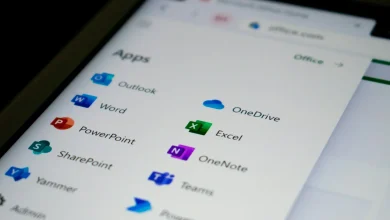
Microsoft 365 is the subscription version of Word, Excel, PowerPoint, Outlook and OneDrive cloud storage, bundled together and billed monthly or yearly instead of bought once as a disc or download. The pitch is that you always have the current apps, you get cloud storage thrown in, and in the past couple of years Microsoft has started folding in its Copilot AI assistant features too, though how much of that is genuinely useful day-to-day is, in our view, still a bit overstated.
For home users there are broadly three tiers worth knowing: a Family plan that covers multiple people under one subscription, a Personal plan for one person, and cheaper web-only or storage-only options that strip out the desktop apps entirely. Prices move around and change in AUD terms more often than you’d think, so treat anything below as a rough guide at the time of writing rather than gospel, and check Microsoft’s own pricing page for current figures before you commit to anything.

The Family plan, and why it’s the one most households should look at first
Microsoft 365 Family currently runs at around $139 a year, give or take, and covers up to six people, each getting their own 1TB of OneDrive storage, their own login, and the full desktop apps across Windows, Mac, iOS and Android. Six terabytes of cloud storage split across a household for roughly the price of a couple of takeaway dinners each month is, frankly, a pretty good deal if more than two people in your house actually use Office apps.
Here’s the bit people miss: that storage is per person, not shared. So if your teenager is hoarding four years of school projects and your partner is backing up every receipt photo since 2019, they’re not eating into your allocation. In a household with a desktop running the latest build of Windows, a couple of laptops and a tablet or two, that per-person storage pool solves the “why is my cloud drive full” problem better than most people realise.
The catch, and it’s a real one, is that you need to actually use the apps. If your household’s “Office” usage is one person occasionally writing a resume in Word, paying $139 a year to cover six logins is a bit like buying a six-controller multiplayer bundle for a game you play solo. Nobody else is picking up a controller, and you’re still paying for the lot.
Personal, Family or Basic: working out which one fits
Microsoft 365 Personal sits at roughly $109 a year for one person with 1TB of storage and the full apps, which only makes sense over Family if you genuinely live alone or nobody else in your household touches Word or Excel. The maths rarely favours Personal once there are two or more active users, because Family costs about 25 to 30 percent more for three times the people.
Then there’s Microsoft 365 Basic, a cheaper tier mostly sold as extra OneDrive storage with a trimmed set of web-only app features rather than the full desktop software. It’s aimed at people who just want more cloud storage for photos and documents and don’t need Word installed on a laptop. If that’s genuinely your use case, and a lot of people’s is, Basic is the more honest buy. Paying for the full Family tier purely to get extra storage, when you’re happy using Google Docs or the free web version of Office, is money down the drain.
We’d also argue, and this is the mildly contrarian bit, that a chunk of Australian households would be better off not subscribing at all. If your laptop came with a one-off licence of Office, or your workplace or school already gives you access to Microsoft apps through a work or education account, stacking a personal subscription on top is often paying twice for the same thing. We’ve seen this happen more than once: someone’s uni account already includes Microsoft 365 Education at no extra cost, and they’re also paying for Family out of habit.
The free alternatives worth weighing up before you subscribe
Google Docs, Sheets and Slides are free, work fine for most households’ actual needs, and sync fine across devices without a subscription. LibreOffice is free, open source, and handles Word and Excel files competently if occasionally clunkily. The genuinely tricky part is file compatibility: if your kid’s school, or your workplace, insists on .docx files with specific formatting such as tracked changes or complex spreadsheet macros, the free alternatives can wobble on the fine details even though they open the files fine.
Our honest take is that most households don’t need Microsoft 365 at all, and a smaller number need it badly enough that the Family plan is genuinely good value. The trick is being honest with yourself about which camp you’re in, rather than defaulting to the subscription because that’s what’s always been there. For more on how cloud storage naming and branding has shifted over the years, our piece on why Microsoft’s OneDrive name isn’t exclusive is a decent rabbit hole.
Why this matters more in late 2026 than it used to
There’s a timing wrinkle worth knowing. Microsoft ended free support for Windows 10 back in October 2025, and while the consumer Extended Security Updates programme has since been stretched out to run until October 2027 according to Microsoft’s own end-of-support page, plenty of households are now in the middle of deciding whether to upgrade an older PC, buy a new one, or just keep limping along on an unsupported setup. If you’re shopping for a new machine anyway, it’s worth checking our Windows 11 compatibility guide before you assume your current laptop will even run the newer operating system, because the processor and security chip requirements catch a lot of otherwise perfectly healthy PCs out.
That matters for Microsoft 365 because buying a new Windows laptop is exactly the moment most people get steered into a 365 subscription at checkout, sometimes bundled in at a discount, sometimes added as a “free trial” that quietly becomes a recurring charge. Read what you’re actually signing up for before you click through, and check whether the device already includes a licence you’re not using.
Is the Copilot AI stuff worth paying extra for?
Microsoft has increasingly folded Copilot, its AI writing and data assistant, into 365 subscriptions, and in some regions there’s a separate, pricier AI-enabled tier on top of the standard Family and Personal plans. Our experience with these assistant features across the Microsoft, Google and OpenAI ecosystems, which we’ve covered in more detail in our comparison of ChatGPT, Claude and Gemini, is that they’re genuinely handy for drafting emails and summarising long documents, less so for anything requiring real accuracy or nuance.
For a household use case, that’s a nice-to-have, not a reason to upgrade on its own. If you’re already paying for Family and Copilot comes bundled in, fine, have a play with it. We wouldn’t pay a meaningful premium purely to access it yet, the same way we wouldn’t buy a whole new console purely for one exclusive we’re lukewarm on.
Shared storage, shared logins and the privacy trade-off
One thing that trips families up: Microsoft 365 Family is built around individual Microsoft accounts, not one shared login. Each family member needs their own account, which is actually the right call for privacy, your teenager’s documents and emails stay theirs, not visible to whoever manages the subscription, aside from storage usage and billing. The household admin, usually whoever’s credit card is attached, can see who’s using how much space and can remove people from the plan, but can’t casually browse into everyone’s files.
If privacy around shared accounts and family data is something you think about a lot, it’s worth a read through the Office of the Australian Information Commissioner’s website on how personal data gets handled across services generally. Setting up separate logins properly from day one avoids a messy untangling later, particularly once kids turn 18 and want their documents and photos to follow them, not stay locked to a parent’s billing account.
Which Microsoft 365 plan Australian households should actually buy
If three or more people in your household regularly use Word, Excel or need meaningful cloud storage, Microsoft 365 Family at around $139 a year is the one to get, and honestly it’s one of the better value subscriptions going if you’re using it properly. If it’s just you, Personal is fine but check the maths against Family first, because the gap is smaller than you’d expect for a lot more capacity.
If storage is the only thing you actually want, Basic is the leaner, more honest buy, and if nobody in your house is doing serious document work, we reckon skipping a Microsoft subscription entirely and using free tools is the move more households should make than currently do. It’s not a glamorous verdict, no RGB lighting, no benchmark chart, but it’ll save a chunk of households $100-plus a year they’re currently handing over out of habit rather than need.
Before you subscribe to anything, it’s also worth double-checking the device itself can run what you need long-term. We’ve gone through the specs that matter in our guide to the best tablets in Australia, which covers a few models increasingly used as the household’s second or third “office” device for exactly this kind of light document work.
— Josh Tannenbaum, Gaming Writer, Tech Geek
Featured image: AI-generated illustration.