Three years of a gaming save file, a decade of family photos and every tax return since 2019, gone in the time it takes a laptop to roll off a desk. We’ve heard versions of that story more times than we’d like, usually from someone who assumed OneDrive or Google Photos “had it covered.” It didn’t, because syncing isn’t backing up, and that one mix-up causes more grief than almost any other tech habit in Australian households. So let’s actually sort out how to back up a Windows PC properly, the kind of setup you do once and then mostly forget about.
Why syncing isn’t the same as backing up
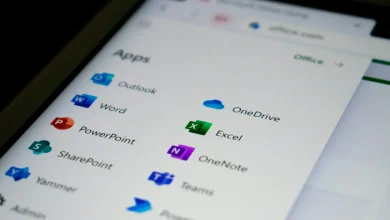
Here’s the bit that trips people up. OneDrive, Google Drive and Dropbox are brilliant for having your files on more than one device. But if you accidentally delete a folder, or ransomware encrypts it, that change syncs too, usually within seconds, to every other device and to the cloud copy. You haven’t protected the file. You’ve just made sure the damage spreads faster.
A genuine backup is a separate copy, held somewhere that isn’t automatically updated the instant your live files change. It might be versioned, meaning it keeps older copies going back weeks or months, so you can roll back to before the problem happened. That’s the whole point, and it’s the one thing pure sync tools generally don’t do well for free.
We’d also say this is where a lot of otherwise careful people get overconfident. Plenty of Australians we’ve spoken with assumed that because their photos “appear on every device,” they’re safe three times over. They’re not. They’re in one place, mirrored. One bad sync, one accidental mass-delete, one compromised account, and all three mirrors go down together.

The 3-2-1 rule, explained without the jargon
IT people love the “3-2-1” rule and for once the acronym actually earns its keep. Three copies of anything you care about, on two different types of storage, with one copy kept somewhere physically separate from your house. For most of us that translates to this: the files on your PC, a copy on an external hard drive, and a copy in the cloud or on a drive kept at a parent’s place or in a work locker.
You don’t need all three for every file on your machine. Nobody’s backing up Windows itself to three places; that’s what reinstalling is for. The rule is for the stuff you can’t replace: photos, documents, financial records, and yes, if you’ve put genuine hours into a save file or a modded game folder, back that up too. We’ve watched a mate lose roughly 200 hours of a Baldur’s Gate 3 campaign to a failed SSD and it genuinely ruined his week. He still brings it up.
What Windows gives you for free, and where it falls short
Windows 11 has a built-in tool called File History, which backs up your personal folders to an external drive on a schedule once you point it at one in Settings. It’s fine. It’s not brilliant. It only covers specific folders unless you manually add more, it doesn’t back up installed programs or most Windows settings, and plenty of people switch it on once and never check whether it’s actually still running months later.
There’s also the full “System Image Backup” option, a leftover from Windows 7 days that Microsoft has threatened to remove for years but somehow hasn’t. It makes a complete copy of your drive, which is handy if you want to restore an entire machine exactly as it was, settings and all. The trade-off is the images are large and the restore process is fiddly enough that we’d only recommend it to people comfortable with a USB recovery drive and prepared not to panic halfway through.
Our mildly unpopular take on cloud-only backup
Plenty of guides will tell you cloud backup services solve this entirely, just pay a subscription and never think about it again. We reckon that’s only half right, and here’s our contrarian bit for the day: a cloud-only backup, with no local copy at all, is a worse bet for most Australian households than people assume.
It’s not that cloud backup is unreliable. It’s that restoring 500GB of photos and documents over a typical home internet connection takes a genuinely long time, and if your home broadband is also down, which is exactly the kind of week disasters tend to pick, you’re stuck waiting. A modestly priced external hard drive sitting in a drawer, somewhere in the vicinity of $100 to $150 at the time of writing, gets your files back in an evening rather than three days of downloading. We’d run both a local drive and a cloud copy, but if we had to pick one to set up first, it’s the physical drive, not the subscription. That’s the opposite of what most comparison sites tell you, and we’re happy to argue it over a coffee at the local café if anyone wants to push back.
Setting up a proper routine, step by step
This is the bit people overthink. It really isn’t complicated once it’s running.
- Buy an external hard drive or SSD with roughly double the storage of what you’re backing up, plug it into Windows, and let File History or a dedicated backup app such as Macrium Reflect’s free tier or EaseUS Todo Backup’s free version handle the external copy on a weekly schedule.
- Set up a cloud sync folder, whether that’s OneDrive, which comes bundled with every Windows licence anyway, Google Drive or Dropbox, for the files you touch daily, so a stolen or dead laptop doesn’t cost you the last fortnight of work.
- Once a month, actually open the backup drive and check a file opens properly. Backups fail silently more often than people expect, and the only way to know yours works is to test it before you need it, not during the emergency.
That’s genuinely most of it. The hard part isn’t the technology. It’s the discipline of doing that third step on a Sunday when you’d rather be doing anything else.
Why this matters more for gamers than people assume
If you’re running a gaming PC, back up more than the My Documents folder. Save games often live buried in app data folders or under a game-specific directory inside your main Documents folder, and plenty of launchers, Steam, GOG Galaxy and Battle.net among them, offer their own cloud save syncing you can switch on separately from anything Windows does. Turn that on for every title that supports it. It is free insurance against a dead drive mid-campaign, and it takes about thirty seconds per game to enable.
Your game library itself doesn’t need backing up in the traditional sense, since Steam or the Xbox app can redownload it, though if you’re on a modest connection that redownload can eat an entire weekend. We’ve found it’s worth keeping an external drive with your most-played, heavily modded titles copied over, because re-downloading 100GB and reinstalling two hundred mods is nobody’s idea of a good Saturday. If you’re trying to work out how Xbox titles fit into a Windows setup in the first place, our explainer on how the Xbox app and Game Pass really work covers where those files actually sit on your drive and what gets synced automatically.
What to do before a major Windows upgrade or a new PC
Backups matter most right before you change something big, and with Microsoft’s Windows 10 support cut-off behind us and the consumer Extended Security Updates programme now running until 12 October 2027 according to Microsoft’s own ESU documentation, plenty of Australians are either upgrading to Windows 11 or shopping for new hardware this year. Before touching anything, do a full backup, not just a sync.
If you’re weighing up whether to buy a new machine at all, our piece on desktop versus laptop for home use is worth a look before you commit, and if storage limits keep nagging at you on the device you’ve already got, our guide to how to fix full storage without losing photos carries over to PC habits better than you’d expect, same logic, different device.
We’d also flag that a backup is now a security tool, not just a convenience one. The Australian Cyber Security Centre’s guidance at cyber.gov.au lists regular, disconnected backups as one of the most effective defences against ransomware, precisely because a backup that isn’t permanently connected to your PC can’t be encrypted along with everything else. That’s the strongest argument for the external drive approach over leaving a drive permanently plugged in and synced around the clock.
Getting backup actually right
The honest version of this guide is three sentences long. Get a separate copy of your important files on an external drive. Get another copy in the cloud. Test both occasionally so you’re not finding out they failed on the worst possible day. Everything else, the scheduling apps, the versioning options, the endless debate over which cloud provider’s plan is better value in dollars per terabyte, is detail layered on top of that basic shape.
We’d rather Australians spend an hour this weekend setting this up properly than spend a week after a failed drive trying to remember where the wedding photos were saved. It’s not an exciting way to spend a Saturday morning, but then again, neither is replaying forty hours of a game you’d already finished because nothing was backed up in the first place. We know which one we’d pick.
— Josh Tannenbaum, Gaming Writer, Tech Geek