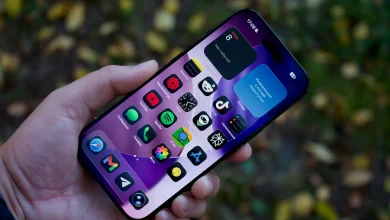
“Storage Almost Full” is one of those notifications that Australians seem to ignore for months, right up until the camera app refuses to open during a kid’s birthday party or a client walkthrough on a job site. The pattern is usually the same: a phone bought two or three years ago, sixty-four or one hundred and twenty-eight gigabytes that felt generous at the time, and a camera roll with twelve thousand photos nobody has looked at since 2023. The good news is that you can clear phone storage without losing photos. The bad news is that most of the quick fixes people try, like deleting the camera app’s cache or uninstalling a game, barely move the needle.
Our take, and it’s a slightly contrarian one, is that the “just delete some apps” advice you’ll see everywhere is mostly theatre. Apps are rarely the real problem on a modern phone. Photos, videos and the backup mess sitting underneath them are, and that’s where the actual space is hiding.
Why your phone fills up faster than you think
Video is the main culprit, not photo count. A single minute of 4K video at 60 frames per second can run past 400 megabytes depending on the phone, and most people now shoot video of everything: school assemblies, dogs doing something mildly interesting, screen recordings of a TikTok they meant to send to a mate and forgot about. Multiply that by a few years of ownership and you’ve got a phone doing the digital equivalent of a garage nobody has cleaned since the house was bought.
There’s also a quieter contributor: WhatsApp and messaging app media. Every photo and video sent to you in a group chat gets auto-downloaded onto your phone by default, duplicating content you probably already have saved elsewhere. We’ve seen single WhatsApp installations eating ten or fifteen gigabytes purely from auto-downloaded media nobody asked to keep.
Back up properly before you touch anything
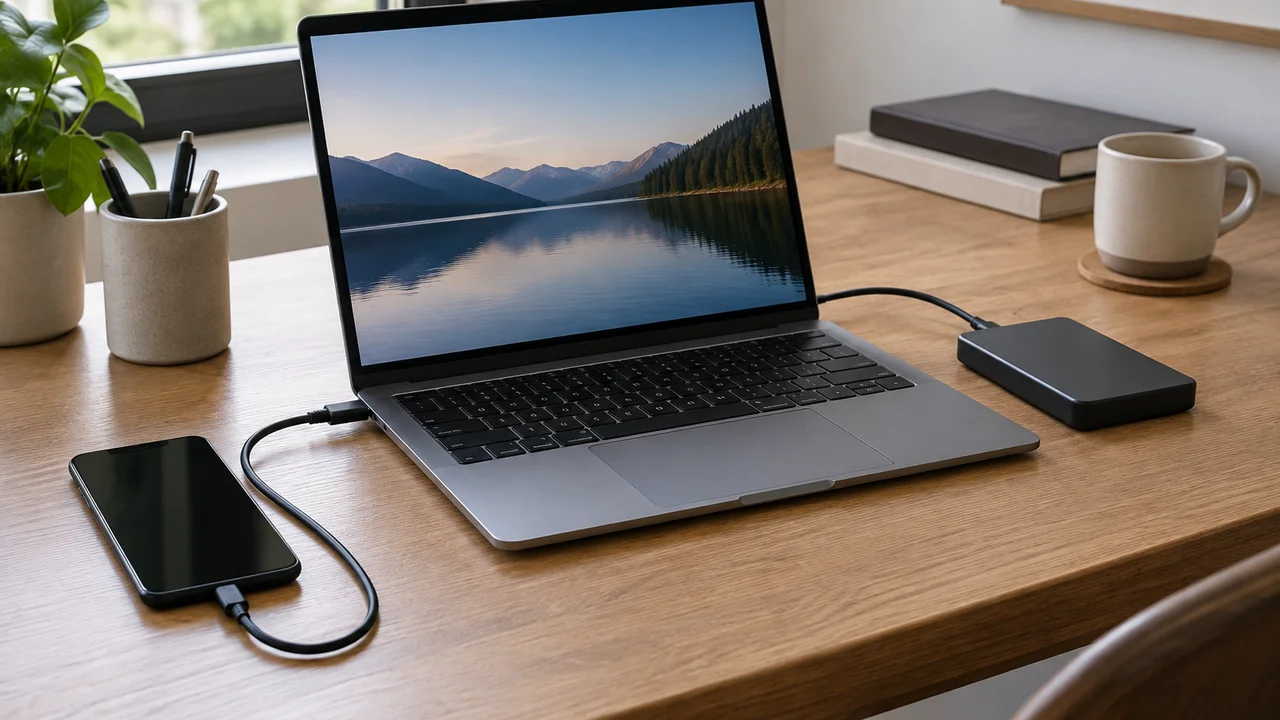
Before deleting a single photo, get a proper backup sorted, because “proper” is doing a lot of work in that sentence. Google Photos and Apple’s iCloud Photos both offer a setting that uploads originals to the cloud and then, once confirmed, lets you remove the full-resolution copy from your device while keeping a smaller, viewable version locally. On Apple devices this is the “Optimise iPhone Storage” setting; on Android it’s Google Photos’ backup and sync with the option to free up device storage afterwards.
The trap here is assuming a backup has finished when it hasn’t. If you’re on a patchy regional NBN connection or tethering off mobile data because your household’s fixed broadband is still waiting on an NBN Co technician, a multi-gigabyte photo backup can silently stall for days. Always check the backup status screen and confirm it says “backup complete” before freeing up space, not just “backing up” with a spinning icon you’ve stopped noticing.
For families juggling several phones and one shared photo library, this is also where plan choice starts to matter. If you’re still on an old plan with a tiny included data allowance, a backup of several years of photos can eat through your monthly data in one hit. Worth checking your current best mobile phones Australia 2026 plan details, or at minimum doing the backup over home Wi-Fi.
The biggest single win: screen recordings and duplicates
Here’s the bit almost nobody does. Both iOS and Android now have built-in tools that scan your photo library for near-duplicates, screenshots, screen recordings and blurry or similar shots taken in a burst. On iPhone, go to the Photos app, tap Albums, and look under Utilities for “Duplicates” and “Recently Deleted”. On Android, Google Photos has a “Free up space” tool under the Library tab that specifically targets items already backed up to the cloud.
We’ve found this single step recovers more space than deleting apps ever does. Screenshots in particular pile up silently, every meme someone sent you, every receipt you photographed instead of filing, every boarding pass from a trip two years ago. None of it needs to live in full resolution on your device forever.
- Check Albums > Utilities > Duplicates (iPhone) or Library > Utilities > Free up space (Android/Google Photos)
- Delete screen recordings over 30 seconds you haven’t watched back
- Clear WhatsApp’s media gallery of anything auto-downloaded more than six months ago
Offload apps, not photos, as your second move
Once photos and video are handled, apps are worth a look, but mostly for the ones that quietly cache enormous amounts of data rather than the ones with a large install size. Streaming apps, food delivery apps and some games cache video thumbnails and map tiles that balloon over time. iPhone users can turn on “Offload Unused Apps” in Settings, which removes the app binary but keeps its documents and data, so reinstalling later restores everything. Android’s equivalent is less automatic but Play Store lets you see per-app storage use under Settings > Storage > Apps, sorted by size, which is usually an eye-opener.
If your phone is genuinely ageing and software updates have slowed to a crawl alongside the storage warnings, it might be a broader conversation than a clean-up. We’ve written previously about when it’s worth repairing an old handset versus just moving on, and the storage situation is often one signal among several worth weighing up in our phone repair or replace Australia guide.
Is a cloud storage subscription worth paying for?
Google One and Apple’s iCloud+ both sell extra cloud storage for a few dollars a month, and honestly, for most households with more than one device and a decent photo habit, it’s worth it. A plan sitting around $2.50 to $4 a month for 200GB, give or take depending on current pricing, is cheaper than most people’s coffee budget and solves the whole problem permanently rather than every eighteen months when the warning pops up again.
Where we’d push back slightly on the usual advice is this: we don’t think everyone needs the biggest tier. A lot of readers get talked into 2TB family plans they don’t need because a salesperson or a well-meaning tech article assumes more is always better. Work out your actual photo and video volume first, usually visible in your phone’s storage settings as “Photos” with a gigabyte figure next to it, and buy to that, not to some imagined future.
What to do if you genuinely can’t back up
Some people are stuck with unreliable internet, an old iCloud account they can’t access, or a phone so old it won’t run the current backup software properly. In that situation, a USB-C or Lightning flash drive designed for phones is a legitimate, unglamorous fix. You plug it in, copy photos across using the Files app on Android or the Photos export function on iPhone, and you’ve got a physical backup sitting in a drawer rather than a cloud account you’re trusting blindly.
It’s not elegant, but for a tradie on a job site in an area with patchy coverage, or an older relative who finds cloud accounts confusing, a $40 flash drive is often more reliable than talking them through an iCloud sign-in over the phone. We’d rather see someone with a dusty drawer full of backed-up memories than a dead phone and nothing at all.
A word on security while you’re in there
While you’re clearing things out, it’s worth tightening up the account holding all of this. A compromised Google or Apple account is one of the more distressing things the Office of the Australian Information Commissioner deals with under the Notifiable Data Breaches scheme, and photo libraries are exactly the kind of personal, sentimental data people worry about most. If you haven’t already, turning on passkeys or at minimum two-factor authentication on your cloud storage account is a five-minute job. We’ve covered the practical side of this in our passkeys explained Australia guide, and it’s a sensible companion task to any storage clean-up.
The Australian Cyber Security Centre’s guidance at cyber.gov.au also recommends keeping at least one backup copy separate from your primary account, which is really just the flash-drive approach above dressed up in official language.
The verdict: clear phone storage the smart way, not the panicked way
The fastest way to lose photos is panic-deleting in the moment your phone refuses to take another picture. The sensible order is backup first, duplicates and screen recordings second, app caches third, and a modest cloud subscription if your household genuinely needs the headroom. None of this requires deleting a single memory you actually want.
If you’re due for an upgrade anyway and storage anxiety is part of the reason, it’s worth factoring base storage tier into your next purchase rather than treating it as an afterthought, something we weigh up properly in our phone buyer’s guide. A phone with 256GB from day one solves this problem for years. One with 64GB solves it for about eighteen months, no matter how disciplined you are about deleting screenshots.
— Priya Raman, Reviews Editor, Tech Geek
Featured image: AI-generated illustration.