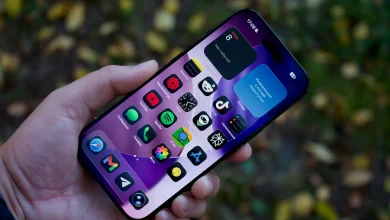
Three days. That’s roughly how long we reckon most people leave their old phone sitting in a drawer “just in case” before they finally admit the new one is set up properly. Which tells you something: the transfer itself usually goes fine, but the bit people get wrong is everything around it, the two-factor codes, the loyalty apps, the SMS from their bank that never arrives because the new SIM hasn’t activated yet. If you’re about to move from an old handset to a new one, whether it’s iPhone to iPhone, Android to Android, or jumping the fence either way, here’s the order we’d actually do it in.
We get asked about this constantly in the lead-up to Christmas and again every January when the new flagship phones land, so this is less theory and more a checklist built from the number of things that go sideways when people skip steps.
Back up before you touch anything
This sounds obvious and yet it’s the step most commonly skipped, usually because the old phone “still works fine” so why bother. Do it anyway. On iPhone, that means either an encrypted backup to a computer via Finder or iTunes, or a full iCloud backup over Wi-Fi, not mobile data, because photo libraries can run into tens of gigabytes. On Android, Google’s backup covers contacts, app data, call history and photos through Google Photos, but it’s worth manually checking which apps are actually included. Banking apps and some messaging apps deliberately exclude themselves from backup for security reasons, and that’s by design, not a bug.
Here’s the mildly unpopular bit: we don’t think cloud-only backup is good enough for anyone with photos they’d be genuinely upset to lose. Cloud storage is brilliant for convenience but it’s still one subscription lapse, one account lockout or one sync error away from a bad afternoon. A once-off local backup to a laptop or an external drive costs you twenty minutes and gives you a second copy that doesn’t depend on anyone’s servers staying up. We’ll die on that hill.
The SIM and eSIM step people forget
Most current phones sold in Australia support eSIM, a SIM that lives in software rather than a physical card, and most of the big telcos plus smaller providers running on their networks can transfer your number to a new eSIM in minutes through their app. The catch is timing. If you do this transfer before your old phone is fully backed up, you can lose the ability to receive the SMS verification codes that some backup and account-recovery steps rely on. Do the backup first, then move the SIM.
If you’re still on a physical SIM, most trade-in and new-phone setups will prompt you to move it across during the guided transfer, but it’s worth checking your telco’s own app for a self-service SIM swap or eSIM activation, because a shopfront visit isn’t always necessary any more. Since the 3G shutdown completed across the networks in 2024, this is also a decent moment to confirm your new phone and plan are both set up properly for 4G and 5G coverage in your area, particularly if you live rural or regional and your current plan was grandfathered in from years back.
iOS to iOS: usually straightforward, mostly
Apple’s Quick Start feature, where you hold the new iPhone near the old one and let it walk through the transfer, remains the easiest version of this whole process. It pulls across apps, settings, photos and, critically, your passwords and passkeys stored in iCloud Keychain. The rough edge is time. A big photo library over Wi-Fi can take well over an hour, and if you interrupt it partway through to leave the house, you’ll want to restart it rather than assume it picked up where it left off.
Apps themselves redownload rather than copy directly, which means anything requiring a fresh sign-in, some banking apps, some streaming services, will ask you to log in again regardless of what the transfer promises. Budget for that. Students moving into share houses or starting university, where a new phone often coincides with a new share-house Wi-Fi password and three new subscription logins at once, tend to find this the most annoying part, not the transfer itself.
Android to Android: less uniform, but fine
Because Android runs across Samsung, Google, Oppo, and others, the transfer tool varies by brand. Samsung’s Smart Switch, Google’s own backup and restore flow built into Android setup, and manufacturer-specific apps all do roughly the same job: copy contacts, photos, apps and settings via cable or Wi-Fi. Cable is faster and more reliable if you’ve got the right adaptor lying around, and for anyone with a large photo library we’d genuinely recommend it over Wi-Fi, which can time out or throttle on older routers.
One thing we’ve found trips up parents setting up a phone for a teenager, or grandparents inheriting a hand-me-down: app data for games and some social apps doesn’t always transfer cleanly between different Android manufacturers, even though the same apps exist on both. If your kid’s Minecraft world or a game save matters to them, check it’s backed up to that specific game’s own cloud save system, not just assumed to come along with everything else.
Crossing the iOS–Android divide
This is where things get genuinely messier, and we’d argue most guides undersell how fiddly it still is in 2026. Apple’s “Move to iOS” app handles the basics well, contacts, photos, calendar, message history where possible, but anything tied to an Android-specific ecosystem, like certain loyalty cards, some banking app data, and app purchase history, won’t follow you. Going the other way, Google doesn’t offer an equivalent single app, so you’re relying more on cloud accounts: Google Photos, Google Contacts, and individual app logins doing the heavy lifting separately.
The practical advice we give tradies and small business owners who switch platforms for a specific work reason, say moving to a ruggedised Android device for job-site apps, is to treat it as a fresh setup rather than a direct carry-over. Budget half a day, not twenty minutes. Reinstall apps one by one, sign in fresh, and don’t assume anything carries over that you haven’t personally checked.
The things people forget entirely
A few categories consistently get missed, regardless of platform.
- Two-factor authentication apps like Google Authenticator or Microsoft Authenticator often store codes locally on the device, not in the cloud, so switching phones without transferring these first can lock you out of banking, email and super fund accounts until you go through account recovery.
- Smart home and wearable pairings, your watch, your earbuds, your smart doorbell, usually need to be manually unpaired from the old phone and re-paired with the new one, and skipping the unpair step can leave the old device still receiving notifications.
- Stored Wi-Fi passwords for your own home network transfer fine within the same ecosystem but not across iOS and Android, which catches out travellers who’ve just landed and are trying to get back onto hotel or Airbnb Wi-Fi from memory.
If you use passkeys or an authenticator app heavily, our related piece on the privacy cost of on-device AI covers some of the account-security trade-offs that come with newer phones storing more credentials locally rather than in the cloud, which is relevant here too.
What to do with the old phone, properly
Once you’ve confirmed everything’s across, and we mean actually opened the apps and checked, not just assumed, it’s time to wipe the old device. On iPhone that’s Settings, General, Transfer or Reset, Erase All Content and Settings, after signing out of iCloud. On Android it’s a factory reset from Settings, after removing the Google account and confirming the device isn’t still linked to Find My Device in a way that would brick it for whoever gets it next.
The eSafety Commissioner and the Office of the Australian Information Commissioner both publish guidance on what counts as a proper wipe versus just deleting files, because a factory reset alone can sometimes leave recoverable data if encryption wasn’t enabled, which is worth checking before you trade in, sell, or hand a device down to a family member. Older phones with no encryption turned on, which is rarer now but still shows up on handsets from five-plus years ago, are the ones to be most careful with.
Trade-in, sell privately, or donate to an e-waste or device-reuse programme, all reasonable options, but don’t skip the wipe step because you’re in a hurry to close the box and post it off.
Buying the next one with this in mind
Here’s where we’d push back gently on how most people shop. The spec sheet war around camera megapixels and chip benchmarks gets a lot of airtime, but the thing that actually determines how painful your next transfer will be, and how long you’ll go before doing this whole dance again, is software update commitment. Several manufacturers now promise five, six, even seven years of security and OS updates on current phones, a dramatic shift from the two or three years that used to be standard. A phone that gets updates for seven years is a phone you’re not forced to migrate off in a hurry because it’s stopped receiving security patches.
We’d also argue battery health and repairability matter more day to day than almost anything on a spec sheet, because a phone with a replaceable battery and available parts is a phone you can keep rather than one you’re forced to replace the moment it starts dying by 3pm. If you’re shopping for a new device anyway, our rundown on how AI is changing your smartphone in 2026 is worth a read before you get swept up in marketing claims about features you may never actually use.
Getting the plan sorted too
A new phone is often the moment people finally look at their mobile plan, and fair enough, it’s a natural trigger point. Check whether your current plan still makes sense for how you actually use data now, particularly if you’ve gone from a budget 4G-only device to something that handles 5G properly. Our explainer on 5G coverage and speeds in Australia is a decent gut check on whether upgrading your plan is actually worth it where you live, because coverage still varies a lot more by postcode than the ads suggest.
If something feels off during the switch, an unexpected call purporting to be from your telco asking you to “verify” account details, for instance, that’s worth treating with suspicion. The ACCC’s Scamwatch has seen phone and SIM-swap scams spike around periods when people are actively changing devices and providers, because scammers know that’s exactly when someone’s guard is down and expecting unusual account activity.
Our take: do it slowly, once
The whole process, done properly, takes an evening rather than an hour, and that’s fine. Rushing it is how people end up locked out of their own accounts a week later trying to remember which authenticator app had which codes. Back up twice, move the SIM last, check your two-factor apps before you wipe anything, and treat cross-platform switches as a fresh start rather than a copy-paste job. Your future self, three months from now trying to log into your super fund, will thank you for the extra twenty minutes.