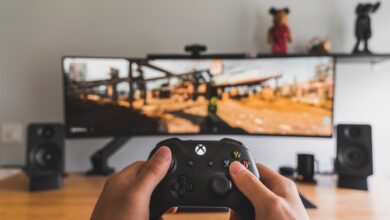
Plenty of readers have a TV capable of 120Hz, variable refresh rate and genuinely low input lag sitting in the lounge room right now, and it’s running like a $400 special from a decade ago because nobody told them which cable to use or which menu to dig into. We see this constantly in reader emails: someone’s dropped $1,800 on a new OLED, plugged in their PlayStation 5 or their gaming PC, and wondered why Call of Duty still feels sluggish. The answer is almost always sitting two or three menus deep, unswitched.
This isn’t a knock on anyone. TV menus are a mess of marketing names that mean nothing until you’ve had to learn them the hard way, and manufacturers don’t exactly make “turn on game mode” the first thing you see. So here’s the practical version, written the way we’d explain it to a mate over a beer rather than the way a spec sheet explains it.
Why TV setup for gaming actually matters
A proper TV setup for gaming comes down to three things working together: the right HDMI port, variable refresh rate switched on, and game mode doing its job instead of sitting disabled. Miss any one of those and you’re paying for hardware you’re not using. It’s a bit like buying a sports car and leaving it in second gear because nobody showed you where the other gears are.
Modern TVs ship with every picture-quality feature turned up to make the demo unit look impressive on a showroom floor. Motion smoothing, dynamic contrast, extra processing, all of it adds delay between your controller input and the picture changing on screen. For a nature documentary that lag is irrelevant. For a competitive shooter or a fast platformer, it’s the difference between landing a shot and wondering why you died half a second after you pulled the trigger.
HDMI 2.1: what it actually gives you
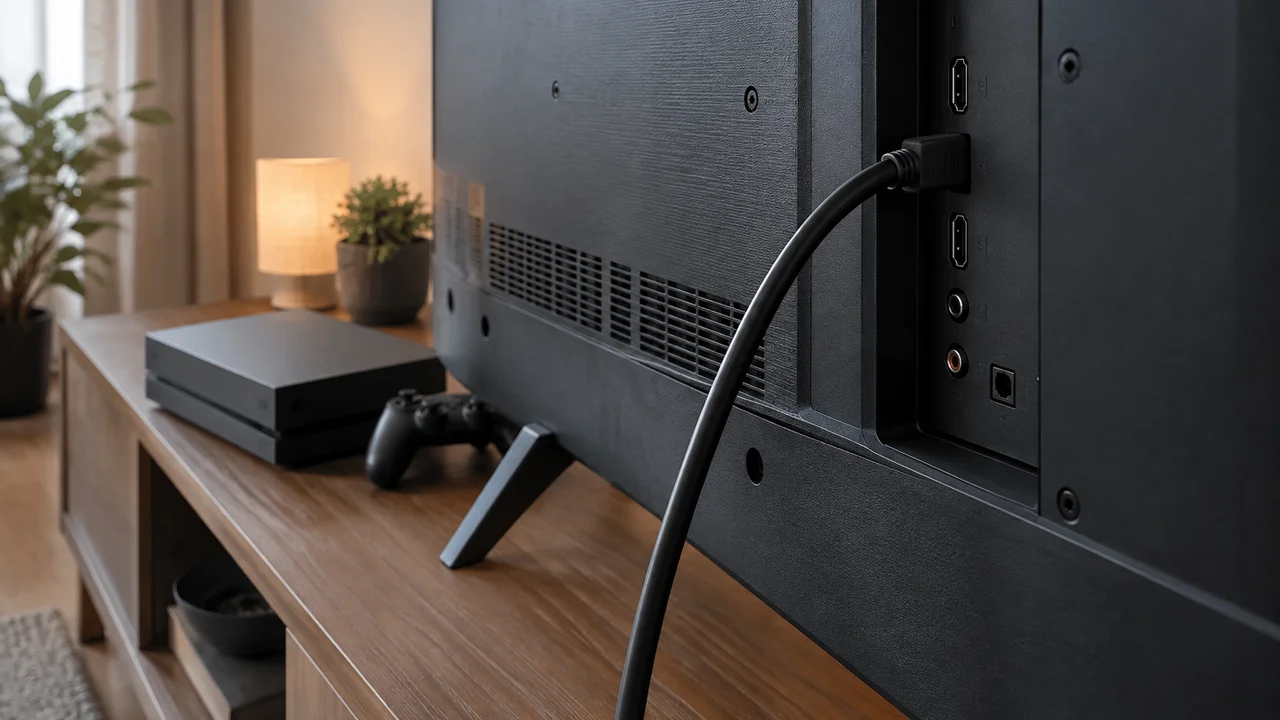
HDMI is the cable standard, and the number matters more than most shoppers realise. HDMI 2.1 is the version that supports 4K resolution at 120 frames per second, along with the bandwidth to carry variable refresh rate signals properly. Older HDMI 2.0 ports cap out at 4K60, which is still fine for plenty of games, but it won’t let a PlayStation 5, Xbox Series X or a mid-range gaming PC show off what they can actually do in performance modes.
Here’s the catch almost nobody checks: not every HDMI port on a TV is a full HDMI 2.1 port, even on TVs sold as “HDMI 2.1 compatible”. Most mid-range and budget sets only wire one or two of their four HDMI inputs to the full 2.1 spec, with the rest staying at 2.0 bandwidth. If your console is plugged into the wrong port, you’ll never see 120Hz or full VRR benefit no matter what you switch on in the settings. Check your TV’s manual or the product page on the manufacturer’s site for which port numbers carry full bandwidth, and label the back of the TV with a bit of tape if you have to. We’ve done exactly that on our own test setup because it’s genuinely easy to forget six months later.
The cable matters too
An old HDMI cable from a decade ago physically won’t carry the data a 4K120 signal needs, regardless of the ports on either end. Look for cables marked “Ultra High Speed HDMI” if you want to be certain, which is the official certification from the HDMI Licensing Administrator for cables rated to carry the full HDMI 2.1 bandwidth.
VRR: the feature most people never switch on
Variable refresh rate, or VRR, lets the TV’s screen refresh rate match the frame rate your console or PC is actually outputting in real time, rather than sticking to a fixed 60Hz or 120Hz. Without it, if a game’s frame rate dips even slightly below the TV’s fixed refresh, you get screen tearing or stuttering, that horrible visual hitch where the image looks like it’s been sliced in half mid-frame.
With VRR switched on, those dips get smoothed over because the display adjusts itself to whatever the console is sending. It’s one of those features that’s completely invisible when it’s working and painfully obvious when it’s not.
Both Xbox Series X|S and PlayStation 5 support VRR, though it arrived on PlayStation later via a software update than it did on Xbox, and not every game patches it in properly even now. The setting itself usually lives under the TV’s general picture menu or a dedicated “game” settings page, often labelled something unhelpful like “Game VRR” or “Freesync Premium” depending on the brand. If you’re not sure your TV supports it at all, checking the manufacturer’s own specification page is a more reliable reference than most retail spec sheets, which have a habit of bundling buzzwords together without saying what’s actually supported.
Game mode, and why it’s not optional
Game mode strips out the picture processing that adds input lag, which is the delay between pressing a button and seeing the result on screen. On most TVs this setting is buried under the picture menu, and newer sets will often switch to it automatically when they detect a console, but that auto-detection is patchy and plenty of monitors mislabelled as “smart TVs with gaming features” just don’t bother.
Our mildly contrarian take here, and we’ll die on this hill: a lot of the extra picture modes TV manufacturers spruik, the ones with names like “filmmaker mode” or “vivid dynamic”, are actively worse for competitive gaming than switching everything off and running flat, basic game mode with brightness turned up. Reviewers obsess over colour accuracy and HDR tone mapping, and for cinema that’s fair enough. But if you’re trying to see an enemy in a dark corner of a map in a shooter at 3am, accurate colour reproduction matters a lot less than raw visibility and responsiveness. We’d rather win the gunfight than admire the colour grading.
Check your input lag figures if the TV’s manual or manufacturer page publishes them. Anything under about 15 milliseconds in game mode is excellent for competitive play; anywhere up to 25 to 30 milliseconds is still perfectly playable for most single-player and casual multiplayer titles. Above that and you’ll start to feel a disconnect between your inputs and the screen, especially in anything rhythm-based or twitchy.
Matching your console or PC settings
None of this works in isolation. Your console or PC also needs to be told what the TV can handle, and the defaults aren’t always sensible.
- On PlayStation 5, head into Settings, then Screen and Video, then Video Output, and confirm the resolution and refresh rate match what your TV supports before toggling VRR on in that same menu.
- On Xbox Series X|S, it’s Settings, then General, then TV & display options, where you’ll find separate toggles for 4K, 120Hz and VRR that all need to be switched on individually.
- On a gaming PC, this depends on your graphics card’s control panel (NVIDIA or AMD) alongside Windows display settings, and it’s worth checking both agree on the refresh rate rather than assuming Windows picked the right one automatically.
If you’ve recently built or upgraded a gaming PC and haven’t thought hard about which parts actually move the needle for frame rates, our guide to PC gaming on a budget: upgrades that actually matter covers where the money’s genuinely well spent versus where it isn’t.
The Australian price and retail reality
Genuine full-bandwidth HDMI 2.1 support across multiple ports used to be a premium-tier feature reserved for TVs well north of $2,000. That’s shifted. At the time of writing, plenty of mid-range 4K TVs from major brands sitting somewhere around the $900 to $1,500 mark now offer at least one or two proper HDMI 2.1 ports with VRR support, which is a genuinely good outcome for anyone shopping this Christmas period.
Just don’t assume a bigger number on the box means more of those ports are full-spec. Read the fine print on the manufacturer’s own specification page rather than trusting a shelf-talker in store, because retail staff don’t always know the difference between a 2.0 port and a 2.1 port either, and honestly it’s not really their job to. If you ever feel like a deal looks too good to check, the ACCC’s consumer guidance is worth a skim before you commit to a big-ticket purchase based on a shelf sticker alone.
If you’re weighing up a new TV purely as a gaming upgrade versus putting that money into the console or PC itself, it’s worth reading up on what you’re actually driving the picture with. Our breakdown of the NVIDIA RTX 50 series in Australia 2026 is a decent place to start if a PC upgrade is on the table instead of, or alongside, the new screen.
Common mistakes worth double-checking
A handful of issues come up again and again in reader messages and forum threads. The TV is set to the wrong HDMI input label, so it’s not actually recognising the source as a gaming device and won’t offer the game mode prompt. The console’s HDR setting is fighting with the TV’s own HDR processing, producing a washed-out or overly dark image that looks nothing like what the game was designed to show. Or the soundbar or AV receiver sitting between the console and the TV is an older model that doesn’t pass through HDMI 2.1 signals properly, quietly capping everything downstream at a lower spec without any warning on screen.
That last one catches people out constantly, because the TV itself is perfectly capable, but the budget soundbar bought two years ago is the bottleneck nobody thought to check.
If you’re troubleshooting a home network alongside a new entertainment setup, like a console that keeps dropping out mid-match, it’s also worth glancing at our guide to securing your home router, since a poorly configured router can introduce its own lag that has nothing to do with the TV at all.
Getting your TV setup for gaming right
Here’s our honest verdict after going through this with more televisions than we’d like to admit. A correct TV setup for gaming is five minutes of menu-digging that most Australians never bother with, and it’s genuinely one of the highest-value, lowest-cost upgrades available to anyone who already owns a decent console or PC. You don’t need to spend another cent. You need the right port, the right cable, VRR switched on, and game mode doing what it’s meant to do instead of sitting there disabled because nobody asked it to turn on.
It won’t make a 60-frame-per-second game suddenly run at 120, and it won’t fix a genuinely underpowered console struggling with a demanding title. But for anyone sitting on hardware capable of more than they’re currently seeing, this is the free performance upgrade hiding in plain sight. Go check your ports tonight.
— Josh Tannenbaum, Gaming Writer, Tech Geek
Featured image: Unknown, CC BY-SA 3.0.