Somewhere in most Australian homes there’s a small box, usually beige or black, wedged behind the TV or on top of a bookshelf, doing more security-critical work than almost anything else in the house. It’s the router, and if you’ve never changed a single setting on it since your NBN technician left, now is a reasonable time to secure your home router properly. Not because something has gone wrong at your place specifically, but because routers sit at the front door of every device you own, and 2026 has already given us a fresh reason to care about who’s knocking.
We’ll go through this as a checklist rather than a lecture. Some steps take two minutes. A couple take twenty. None of them need a technician, and you won’t need to buy anything unless your current gear genuinely can’t do WPA3, which we’ll get to.
Why routers get targeted in the first place
Routers are attractive to criminals for a boring reason: they’re always on, rarely patched and almost never watched. Unlike a phone or laptop, nobody glances at a router’s screen for odd behaviour, because it doesn’t have one. That makes it an ideal spot to quietly install malware and forget about it.
The scale of this isn’t theoretical. In a joint advisory published in September 2024, the Australian Signals Directorate and its Five Eyes partners detailed a botnet run by a Chinese company called Integrity Technology Group, built from more than 260,000 compromised routers, firewalls and other internet-connected devices worldwide, with an estimated 2,400 of them sitting inside Australian homes and small businesses. The malware family involved, based on Mirai, specifically hunts for consumer-grade routers running outdated firmware. None of those households did anything unusual to get caught up in it. They just never updated the box.
That’s the mindset worth carrying into the rest of this: a router doesn’t need to be famous or valuable to be worth hijacking. It just needs to be reachable and unpatched, and a huge number of them are both.
The quickest way to secure your home router: change the admin login
Two passwords live on your router, and people usually only think about one of them. The Wi-Fi password gets devices onto your network. The admin password, often left on “admin/admin” or “admin/password” straight out of the box, controls the router’s settings, including the Wi-Fi password itself. If someone gets into the admin panel, changing your Wi-Fi password is the least of what they can do.
Log into the router (the address is usually printed on a sticker on the unit, something like 192.168.1.1 or 192.168.0.1), find the administration or system settings, and set a long, unique password there, separate from your Wi-Fi password. A proper password manager makes this painless, because you’re not trying to remember a router login alongside everything else.
Worth knowing: Australia’s Cyber Security (Security Standards for Smart Devices) Rules 2025, which commenced on 4 March 2026, now ban manufacturers from shipping most new consumer smart devices with universal default passwords. That’s a genuinely good change, but it only applies going forward, to new gear. It does nothing for the router that’s been sitting in your hallway cupboard since 2022, which is exactly why this step still matters on existing hardware.
Turn on WPA3, or WPA2 if that’s genuinely all you have
Encryption is what stops someone parked outside from reading your traffic. The Wi-Fi Alliance, the industry body that certifies Wi-Fi hardware, now makes WPA3 mandatory for any newly Wi-Fi Certified device, and most routers sold in Australia over the last few years support it. Open your router’s wireless security settings and check what’s selected. If you see WEP or plain WPA listed as the active mode, both are old enough to be trivially broken, and switching to WPA3 (or WPA2 if WPA3 isn’t offered) should be immediate.
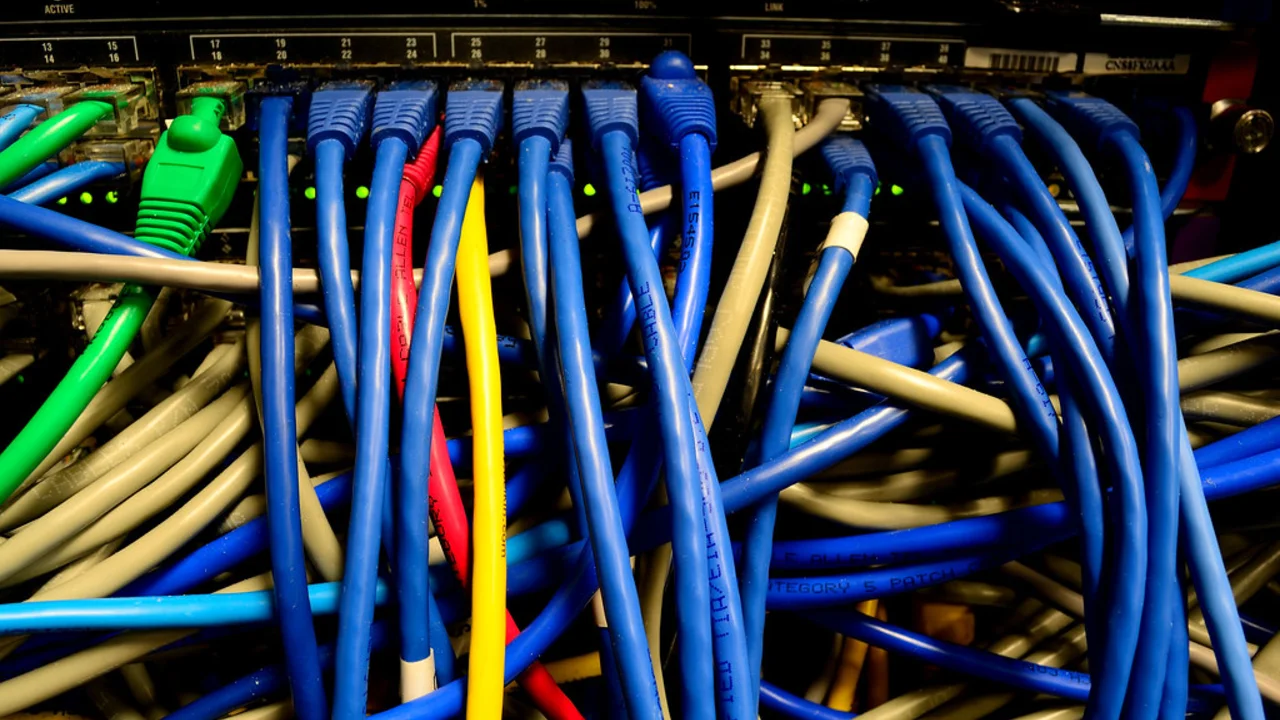
Some routers offer a “WPA2/WPA3 transitional” mode, which is a sensible middle ground if you’ve got a couple of older smart devices that refuse to connect on WPA3 alone. It’s not as strong as WPA3 everywhere, but it’s a long way better than leaving things on WPA2 to avoid the hassle.
What if your router doesn’t offer WPA3 at all?
Then it’s probably old enough that firmware updates have stopped too, which is a bigger problem than the encryption setting on its own. We’d put “replace the router” above “argue with it over WPA3” on the priority list at that point.
Keep the firmware current, whoever supplied the router
Firmware is the router’s operating system, and it’s the thing botnet operators are actually exploiting, not usually the Wi-Fi password. Most current routers, including the ones bundled by Telstra, Optus and TPG with their NBN plans, will check for updates automatically if you leave that option switched on, which is worth confirming rather than assuming.
If you bought your own router instead of using the one your provider supplied, the update process is entirely on you. That’s the trade-off of going your own way on hardware: more control over the settings, including things like a mesh Wi-Fi system covering a bigger house, but no telco support desk chasing you to patch it. Either path is fine. Just check the update setting exists and is turned on, and if your router is old enough that updates have stopped arriving altogether, treat that as the real deadline for replacing it, not the day it physically stops working.
Switch off remote management, UPnP and WPS
Three features cause a disproportionate share of router compromises, and all three exist mainly for convenience rather than necessity.
- Remote management lets you log into the router’s admin panel from outside your home network. Almost nobody needs this day to day, and it’s a direct door in for anyone who finds it open. Turn it off.
- UPnP (Universal Plug and Play) lets devices on your network open ports through the router automatically, without asking you. It’s handy for some games consoles and smart devices, and it’s also exactly how malware quietly punches holes outward. The Australian Cyber Security Centre’s own guidance on securing home Wi-Fi and routers recommends disabling both remote management and UPnP where you don’t specifically need them.
- WPS, the push-button or PIN-based pairing shortcut, has known weaknesses in its PIN implementation that make it worth switching off entirely; typing the actual Wi-Fi password takes an extra ten seconds and doesn’t come with the same hole.
None of this will break anything most households actually use. If a specific device stops working after you disable UPnP, you can switch it back on for that one case, but leaving it on by default for the whole network is the wrong trade.
Set up a guest network, especially for the smart home gear
Here’s our mildly unpopular opinion on this list: for most households, a guest network does more real-world good than the WPA3 upgrade, even though it gets a fraction of the attention. Your main Wi-Fi network is where your laptop, phone and anything with banking apps or passwords sits. Your smart plugs, cheap security cameras, the smart TV and the robot vacuum shouldn’t be on that same network, because plenty of them are exactly the low-cost, rarely-updated devices that smart home privacy concerns keep coming back to, and some genuinely ship with weak security baked in.
Most routers sold in the last five years support a guest network as a built-in option, isolated from your main devices, sometimes with its own password. Put the smart home gear there. If one of those devices does get compromised, and with cheap IoT hardware that’s a real “when” not “if” for some of it, the blast radius stops at the guest network instead of reaching your laptop.
Check who’s actually connected to your network
Most router admin panels have a page, sometimes called “connected devices,” “client list” or “DHCP clients,” showing every device currently on the network. It’s worth a look every few months. You’re checking for anything you don’t recognise: an unfamiliar device name, a MAC address that doesn’t match anything in the house, more devices than you can account for.
In practice most surprises turn out to be a smart speaker or a visiting relative’s phone that never got removed from memory, not an intruder. Still, it’s a five-minute check, and it’s the closest thing to actually looking at the front door rather than just trusting the lock.
Where to start if you only have twenty minutes
If twenty minutes is all you’ve got, we’d rank it like this: admin password first, because it controls everything else; WPA3 or WPA2 second, because it’s usually a two-click change; then firmware updates, because that’s what closes the door botnet operators actually use. Remote management, UPnP and WPS take another five minutes between them. The guest network is the one step people skip because it sounds advanced, and it’s the one we’d argue punches hardest for households with a lot of smart home gadgets plugged in.
None of this requires new hardware or a call to your provider, whether you’re on a Telstra, Optus, TPG or smaller NBN plan with a supplied modem, or running your own router by choice. It requires about twenty minutes and a willingness to actually log into a box most of us never think about until it stops working. Do it once, check the firmware setting again in six months, and the box behind the TV stops being the weakest link in the house.