Open Windows Security on a brand-new PC and you’ll find most of the useful stuff sitting there quietly switched off. Not broken, not hidden, just not on, because Microsoft would rather you never see a warning dialog in the first ten minutes of owning a laptop. We get why that’s the default. But it means most Australians are running machines with the safety rails half-installed, and nobody tells them until something’s already gone wrong.
We’ve spent a fair bit of time this year poking around Windows 11 menus for various stories, including our rundown on Windows 11 settings worth changing on a new PC, and security keeps coming up as the bit people skip. Understandable. It’s not as fun as picking a wallpaper. But with Windows 10 now past its free support date and a lot of households still running it under the extended updates programme, getting the security basics right matters more this year than most.
Why this matters more in late 2026 than it used to
Microsoft pulled free support for Windows 10 on 14 October 2025. If you’re still on it, you’re either paying for Extended Security Updates, which Microsoft has now stretched out to run until 12 October 2027 according to its own ESU documentation, or you’re running an unsupported machine that’s quietly becoming a bigger target every month it goes without patches. Either way, the settings below matter whether you’re on Windows 10 or 11, but they matter more on an older machine with fewer built-in protections doing the work automatically in the background.
The honest version: none of this is exciting. There’s no frame rate to argue about here, no new graphics card to get worked up over. But a PC that’s been quietly compromised runs worse than any badly optimised game port, and nobody enjoys explaining to their bank why there’s a withdrawal from a suburb they’ve never set foot in.
Turn on Windows Hello and actually use it
If your laptop has a fingerprint reader or an infrared camera for face unlock and you’re still typing a password every single time, you’re doing more work for less protection. Windows Hello creates a credential tied to your specific device rather than a password that could theoretically be typed in from anywhere on earth. Go to Settings, then Accounts, then Sign-in options, and set it up properly with a PIN as the backup method.
We’d argue the PIN is actually the underrated hero here, more than the fingerprint sensor itself. People assume a PIN is weaker than a password because it’s shorter and simpler to guess. But a Windows PIN is tied to the hardware security chip in your specific machine, called the TPM, short for Trusted Platform Module. A stolen password can be used anywhere in the world. A stolen PIN is useless without the actual laptop sitting in front of someone.
Switch on Controlled Folder Access, even though it’ll annoy you at first
This is the setting most people have never heard of, and it’s buried inside Windows Security under Virus and threat protection, then Ransomware protection. Controlled Folder Access locks down your Documents, Pictures and Desktop folders so only apps you’ve specifically approved can modify files inside them. Ransomware works by quietly encrypting everything in those folders before you notice anything is wrong. This setting gets in its way.
It will occasionally block a legitimate app from saving a file, and you’ll need to add that app to the allowed list manually, which is a genuine bit of friction. That’s the trade-off. We reckon it’s worth putting up with, given what ransomware recovery actually costs people in practice, both in money and in photos and documents that simply never come back.
Get two-factor authentication onto your Microsoft account
Your Microsoft account is the front door to OneDrive, email, and increasingly to Windows itself through cloud-linked sign-in. If someone guesses or buys your password off a leaked database, and the Australian Cyber Security Centre’s guidance at cyber.gov.au makes clear this happens constantly, a password alone won’t stop them getting in.
We’ve written a full breakdown of the options in Two-factor authentication: SMS vs apps vs security keys, and our take hasn’t changed: an authenticator app beats a text message, and a physical security key beats both. SMS codes can be intercepted through SIM-swap scams, a pattern the Australian Competition and Consumer Commission’s Scamwatch service has flagged repeatedly. Still far better than nothing, but don’t stop there if you’ve got the option to go further.
Turn on automatic updates and actually let them run
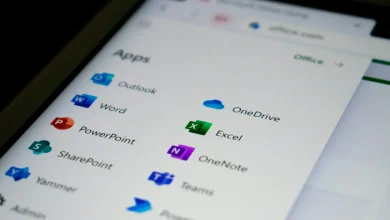
We know the feeling. The update that restarts your PC mid-session while you’re three rounds deep into something is one of modern computing’s great annoyances, the digital equivalent of your mate pausing the footy to answer the door at the worst possible moment. But security patches close holes that are being actively used against real people, not theoretical ones sitting in a lab somewhere. Go to Windows Update settings and make sure updates aren’t paused indefinitely, and switch on the option to receive updates for other Microsoft products so Office and other first-party apps get patched at the same time.
If you’re still running Windows 10 under the ESU programme, this matters doubly. ESU buys you security patches, but only if the machine is actually set up to receive them properly. Check Microsoft’s own ESU enrolment page to confirm you’re enrolled, not just eligible, because there’s a meaningful difference between the two.
Lock down your router, because Windows can’t save you from a bad gateway
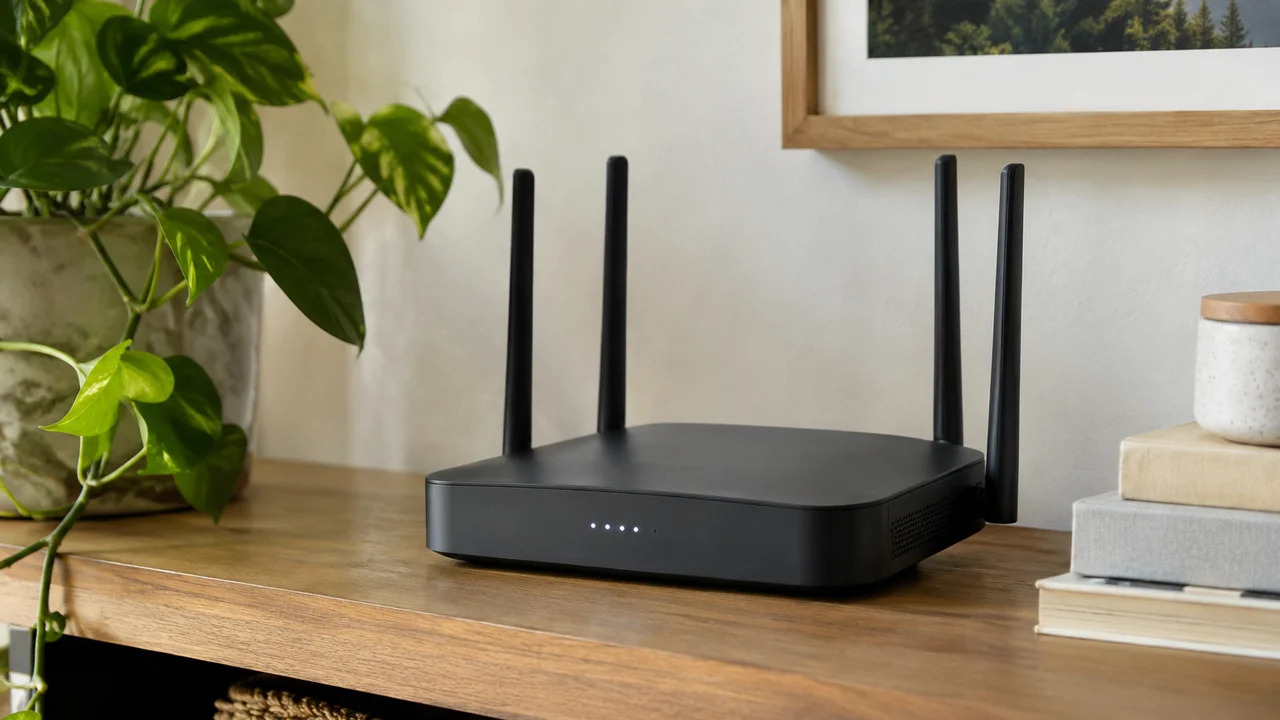
Here’s the bit most guides skip entirely. You can have every Windows setting locked down perfectly and still get picked off, because the weak point in a lot of Australian homes isn’t the PC at all, it’s the NBN router sitting in the corner still running its factory login from the day it was installed. We’ve got a full walkthrough in How to Secure Your Home Router in 2026, and we’d genuinely rank that above half the Windows settings here in terms of actual risk reduction for the average household.
Change the router’s admin password, not just the WiFi password you give to guests. Most people never touch the admin side at all, which means it’s often still sitting on whatever generic login the box shipped with.
The mildly unpopular opinion on antivirus subscriptions
This one we’ll actually argue for, because it runs against a lot of advice spruiked at retail counters. Windows Defender, which Microsoft now calls Microsoft Defender Antivirus, is built into Windows 10 and 11, updates itself automatically, and in independent testing from labs such as AV-Comparatives it’s been performing roughly on par with paid alternatives for several years running now. We don’t think most home users need to pay an annual subscription for a second antivirus product sitting on top of it, duplicating work Defender is already doing quietly in the background.
What you actually get from the paid security suites these days is usually a VPN, a password manager, and some identity monitoring bundled in, not meaningfully better virus detection than what’s already free. If you want those extras, fine, buy the bundle and get value from the bits you’ll actually use. But paying for antivirus purely to “be safe” when Defender’s already doing that specific job, in our view, is money better spent on a standalone password manager or a hardware security key, both of which do more for your actual risk than a second scanning engine ever will.
Check your account recovery details are current
This is the one everyone forgets until they’re locked out at the worst possible moment. If your recovery phone number is an old prepaid SIM you binned years ago, or your recovery email is an account you haven’t opened since high school, you’ve got no way back in when something goes wrong. Go into your Microsoft account security page now, while you’re thinking about it, and update the phone number and backup email to ones you actually check.
It takes about ninety seconds and it’s the difference between a minor hiccup and a genuinely stressful afternoon on hold trying to prove you’re you to a call centre. The OAIC’s own guidance on the Notifiable Data Breaches scheme at oaic.gov.au is a decent reminder of how often companies lose your details in the first place, which is exactly why your own recovery details need to be solid on your end.
What we’d actually prioritise this week
If you only do three things off this list, make it the account recovery check, two-factor authentication on your Microsoft account, and the router admin password. Those three close the gaps that get exploited most often in the real world, based on the patterns the Australian Cyber Security Centre reports seeing repeatedly through its ReportCyber channel. Controlled Folder Access and Windows Hello are genuinely worth setting up too, but they’re defending against slightly less common scenarios than a reused password or a dusty router that’s been wide open since installation day.
None of this is glamorous, and we’d rather be writing about a new graphics card any day of the week. There’s no benchmark chart here, no frame rate to argue over on a forum at midnight. But a compromised PC is the least fun thing you’ll ever use, slower than the worst console port we’ve ever suffered through, and considerably more expensive to fix than any hardware upgrade we’ve recommended this year. If you’re weighing up where your tech budget goes next, our guide to PC gaming on a budget: upgrades that actually matter is a reasonable place to look once the security side of things is sorted properly. Spend the twenty minutes first though. Future you will be properly relieved you did.