Open any laptop or desktop listing right now and you’ll see a storage spec that reads something like “1TB PCIe 4.0 NVMe SSD” and assumes you know exactly what that means. Most people don’t, and most people don’t need to, until the day they’re choosing between two machines that are $150 apart in price and the only visible difference is that string of letters. We get asked about this more than almost any other spec question, which says something about how badly the industry explains its own gear.
So here’s the plain-English version of SSD types explained, with an honest opinion at the end about which of these upgrades is actually worth paying for and which is mostly bragging rights.
What an SSD even is, quickly
A solid-state drive stores your files on flash memory chips with no moving parts, unlike the spinning hard disk drives most PCs used until roughly the mid-2010s. No motor, no spinning platter, no read arm clicking around. That’s why SSDs are faster, quieter, more power-efficient and more resistant to being dropped than the hard drives they replaced. Nearly every laptop and most desktops sold in Australia today ship with an SSD as the main drive, and that’s been true for long enough that walking into a shop and being sold a hard-drive-only machine should raise an eyebrow.
The confusion starts once you ask what kind of SSD, because there are two separate questions tangled together: the physical connector, and the language the drive uses to talk to the rest of the computer.
SATA: the old guard, still fine for some jobs
SATA (Serial ATA) is the older connection standard, originally designed for hard drives back in the early 2000s. SATA SSDs still exist and they’re still sold, usually as the cheapest “budget upgrade” option, because the SATA interface caps out at around 600 megabytes per second of throughput. That sounds reasonable until you compare it to what came next.
If you’re buying a brand-new laptop in 2026, you shouldn’t be looking at a SATA SSD as the primary drive; it’s a bottleneck relative to everything else in a modern machine. Where SATA still earns its keep is as a second, bulk-storage drive in a desktop, or as the cheap and cheerful upgrade for an older PC that’s otherwise stuck on a spinning hard drive. Going from a hard drive to a SATA SSD is one of the single biggest “feels like a new computer” upgrades you can do for well under $100, and we stand by recommending it for exactly that use case.
Verdict: SATA SSDs are a sensible, cheap fix for an old PC, not a sensible main drive for a new one.
NVMe: the protocol that actually changed things
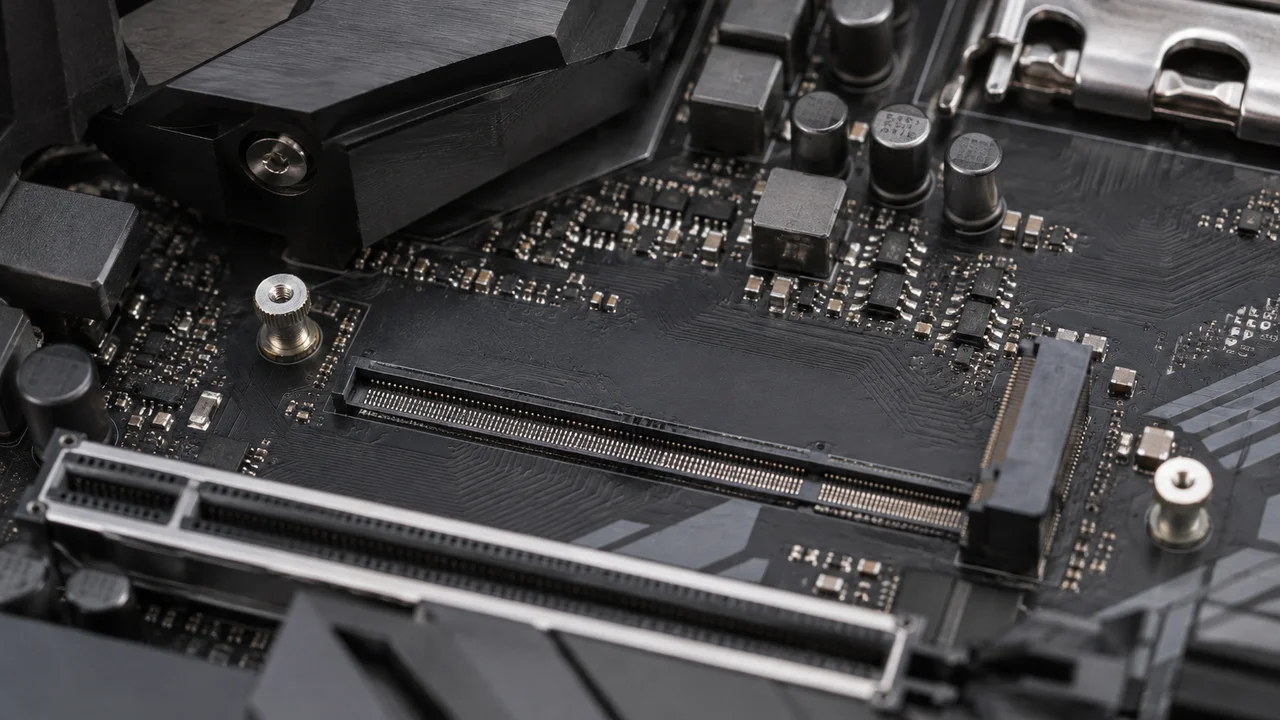
NVMe (Non-Volatile Memory Express) isn’t a physical connector, it’s the communication protocol, the “language” the drive and the computer use to pass data back and forth. NVMe drives plug in via the M.2 slot (a small slot on the motherboard, roughly the size of a stick of chewing gum) and talk directly over the PCIe bus rather than through the older SATA pathway. That’s the real jump: PCIe lanes offer far more bandwidth than SATA ever could, and NVMe was designed from scratch to exploit that, rather than being an old hard-drive protocol bolted onto new hardware.
This is genuinely the bit worth understanding, because “NVMe” and “PCIe” get used almost interchangeably in retail listings and that’s not quite right. NVMe is the protocol; PCIe is the physical lane it travels down, and PCIe comes in generations.
PCIe 3, PCIe 4 and PCIe 5: generations, not categories
Each new PCIe generation roughly doubles the maximum bandwidth of the one before it. PCIe 3.0 NVMe drives, common in machines from several years ago, top out around 3,500 megabytes per second. PCIe 4.0 drives, which have been the mainstream standard in new PCs for a few years now, can push past 7,000 megabytes per second. PCIe 5.0 drives, the newest tier and still a minority of what’s actually on shelves, are rated well beyond that again, though whether you can feel the difference day to day is a separate question entirely (we’ll get to that).
The PCI-SIG specifications page lays out the official generation-by-generation bandwidth figures if you want the engineering detail rather than the marketing summary, and it’s worth a skim if you like knowing exactly what a number on a box is promising versus what it’s measured under in a lab.
Here’s the bit that matters in practice: a drive’s generation has to be matched by the motherboard slot it’s plugged into to get the benefit. A PCIe 5.0 SSD in a PCIe 4.0 laptop will run at PCIe 4.0 speeds. It won’t break anything, but you’ve paid for headroom you can’t use, which happens more often than retailers would like to admit.
Where the speed actually shows up, and where it doesn’t
This is the part that matters more than the spec sheet. Sequential read and write speeds, the big numbers quoted in every ad, matter enormously for a narrow set of tasks: copying huge video files, loading very large game worlds, working with multi-gigabyte creative files. If you edit 4K footage or shuffle large RAW photo libraries around, the jump from SATA to NVMe is obvious and the jump from PCIe 3 to PCIe 4 is noticeable too.
For the ordinary daily grind of web browsing, email, spreadsheets, video calls and streaming, the difference between a decent PCIe 4.0 drive and a flagship PCIe 5.0 drive is close to invisible. Windows boots fast on either. Apps open fast on either. The bottleneck for most everyday tasks has shifted to RAM and the processor, not the drive. We’d argue most home shoppers reading “PCIe 5.0” on a laptop spec sheet and treating it as a must-have are chasing a number that won’t change how the machine feels to use, and retailers know that framing sells upgrades.
That’s our mildly contrarian bit for the day: PCIe 5.0 storage in a consumer laptop is, for most people, closer to a marketing flex than a meaningful upgrade, at least until software catches up to actually need that bandwidth. It’s a pattern we’ve seen before in PC hardware. Clock speed wars on processors in the 2000s, megapixel wars on phone cameras more recently; the headline number races ahead of what ordinary use actually demands.
What this means when you’re actually buying
For most Australians shopping for a new laptop or desktop this summer, a PCIe 4.0 NVMe SSD is the sweet spot: fast enough that storage won’t be the bottleneck, and priced sensibly compared with PCIe 5.0 options. Capacity matters more than generation for day-to-day happiness. A 512GB drive fills up faster than most people expect once photos, games and Windows updates pile in, and 1TB has become the more comfortable baseline if your budget stretches to it.
If you’re building or upgrading a desktop specifically for gaming or heavy creative work, it’s worth checking our rundown on NVIDIA RTX 50 series in Australia, because a fast GPU paired with a bottlenecked drive is a mismatched build, and the reverse is just as wasteful. For anyone still deciding between a desktop tower and a laptop for home or hybrid work, our piece on desktop vs laptop for working from home covers the trade-offs beyond just storage speed.
And if the machine in question is small enough to sit in one hand, our guide to mini PCs explained for buyers goes into which storage options those tiny machines actually support, since M.2 slot count and generation vary wildly between models despite near-identical exteriors.
Upgrading an existing machine
If your current laptop is on Windows 10 and you’re weighing up a new machine anyway given Microsoft’s own end-of-support timeline, it’s worth reading our explainer on what Australians should do now before you commit, since a storage upgrade on an ageing machine sometimes makes more financial sense than a full replacement, and sometimes it really doesn’t.
Desktop users have it easier here. Most desktop motherboards from the last five years or so have at least one M.2 slot free, and swapping a SATA boot drive for an NVMe one is a straightforward, well-documented job that doesn’t require touching the processor or graphics card. Laptop upgrades are more of a lottery: some ultrabooks solder storage directly to the board with no upgrade path at all, which is worth checking before you buy if future-proofing matters to you.
So which SSD type should you actually buy
Skip SATA for a new primary drive, use it only to revive something old. NVMe is the baseline worth insisting on for anything you buy today. PCIe 4.0 is the genuine sweet spot for price versus performance in the Australian market at the time of writing, and PCIe 5.0 is a drive you buy because you have a specific, demanding workload, not because the box says a bigger number.
The honest version of this story is the same one that’s played out across most of PC hardware history: new standards arrive well ahead of the software and everyday tasks that would actually need them, and the gap between “available” and “necessary” is where a lot of unnecessary spending happens. Buy for what you actually do with the machine, not for the number on the sticker.
— Dale Whitfield, Founding Editor, Tech Geek
Featured image: Photo:D-Kuru, CC BY-SA 4.0.