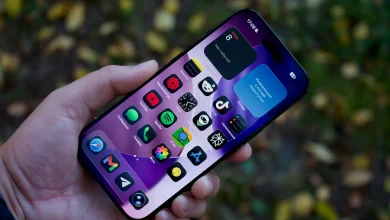
Twenty minutes. That’s roughly how long it takes to go through a new phone properly before you hand over your old one or let the kids near the box. We’ve set up more review units than we can count over the years at Tech Geek, and the pattern never changes: the default settings on a brand new phone are tuned for the manufacturer’s benefit, not yours. Battery life gets sacrificed for flashy always-on displays. Your contacts and photos get synced to clouds you never explicitly agreed to. Notifications arrive from apps you haven’t even opened yet.
So here’s our list of the best phone settings to change the moment you unbox a new handset, whether it’s a flagship you’ve saved for or a sensible mid-ranger picked up for a teenager starting high school. None of this needs an IT background. It needs about as long as it takes the jug to boil.
Turn off the stuff that drains battery by default
Battery is the single biggest real-world complaint we hear from readers, more than camera quality, more than storage. And a lot of it is self-inflicted by factory defaults. Always-on display looks lovely in the shop, showing the time and your notifications on a black screen permanently. In daily use it’s a quiet battery tax that most people never connect to why their phone is at 20 per cent by 3pm.
Same goes for screen brightness set to auto at a punchy default curve, and refresh rate locked to the highest number the panel supports. On phones with a 120Hz option, dropping to adaptive or a lower fixed rate rarely looks different to the eye but stretches the day out. We’d also switch background app refresh from “always” to “only on Wi-Fi” for anything that isn’t messaging. Our general view, and it’s a view, not just a setting: the industry’s obsession with bigger batteries as the headline fix is a bit lazy when so much runaway drain comes from settings nobody asked for in the first place. A smaller battery with sane defaults beats a huge one wasted on an always-on clock face.
If battery anxiety is already a real problem for you, our tips for smartphone battery life go deeper into charging habits and app-level culprits.
Lock down privacy before you install a single app
New phones ask for a lot of permissions in the first boot wizard, and most people tap through without reading. Go back into the privacy or permissions menu (on Android it’s usually under Privacy, on iPhone it’s Settings then Privacy and Security) and check what has “always” access to your location. Weather apps do not need your location when the app is closed. Neither do most games.
Ad personalisation and ad ID resetting are worth a look too. Both major platforms let you limit ad tracking; it won’t stop ads but it reduces how finely your behaviour gets profiled across apps. We’d also turn on the lock-screen notification preview restriction, so a stranger glancing at your phone on the train can’t read your banking SMS or a message from your GP. For anyone worried about the broader scam landscape, the ACCC’s Scamwatch site is a genuinely useful bookmark, and it’s worth checking occasionally rather than only after something’s gone wrong.
Set up Find My Phone and a real screen lock
This sounds obvious and yet we still meet people, including sharp, switched-on people, running a four-digit PIN or no lock at all three years into owning a phone. Set a six-digit PIN minimum, turn on biometric unlock as a convenience layer rather than a replacement, and enable the phone’s own “find my device” service immediately, before it’s needed rather than after it’s been left on a train at Southern Cross or dropped somewhere at the footy.
For families, this is also the moment to set up emergency information on the lock screen; both platforms let you add emergency contacts and basic medical details accessible without unlocking the phone. It’s a five-minute job that genuinely matters if there’s ever an accident. If the phone is for an older parent, this is also worth doing for them directly rather than assuming they’ll find the menu themselves.
Fix notifications before they fix your patience
Every app wants to notify you about everything, forever. Go through the notification settings app by app in the first sitting rather than waiting for the annoyance to build. Banking and messaging apps, yes. Games, shopping apps and anything with “news” in the name, almost always no. We’d specifically turn off notification badges (the little red numbers) for anything non-essential, because a phone covered in red dots trains your brain to check it compulsively even when nothing matters.
Do Not Disturb and Focus modes are worth scheduling properly rather than leaving on the default overnight window. Tradies starting early should set theirs to end before the alarm, not after. Students should build a study-hours Focus mode that silences everything except a parent’s number. Parents juggling a few different chat groups might schedule a block in the evening; the eSafety Commissioner has useful guidance for parents on managing notifications and screen time for younger phone users, particularly relevant now that the social media minimum age sits at 16 following the law that came into force in December 2025.
Sort out storage and backups, the boring but vital one
Nobody enjoys this bit, which is exactly why it gets skipped. Confirm photos are backing up somewhere, whether that’s the phone maker’s own cloud service or a separate app, and check the free tier limit, because most people blow past it within a year of taking photos at 48 or 108 megapixels. Decide now whether you’re paying for extra cloud storage or backing up to a laptop occasionally, rather than discovering the hard way when the phone is lost, stolen or drowned in a toilet at a barbecue.
If you’re moving from an old phone, this is also the point to check what’s actually syncing. We’ve seen people migrate a new phone and unknowingly drag across years of old, irrelevant location history and app data because the “restore everything” option was ticked by default. A clean-ish start is usually healthier, especially if the phone is being repurposed for a different family member. For anyone keeping the old handset rather than trading it in, our guide on phone repair or replace decisions covers when it’s worth fixing a cracked screen versus letting it go.
Get eSIM and connectivity set up properly
Most phones sold in Australia now support eSIM alongside or instead of a physical SIM, and it’s worth setting this up correctly on day one rather than fumbling with it later when you’re switching telcos or travelling. Check whether your carrier supports eSIM transfer in-app, because some still require a call or a store visit, which is an annoyance nobody needs on a Saturday morning. Our full rundown on eSIM in Australia covers which telcos support it and the fiddly bits around transferring a number.
While you’re in connectivity settings, turn on Wi-Fi calling if your telco supports it, useful for patchy reception at home, and check automatic network selection is on rather than locked to a specific band. If home Wi-Fi itself is the weak link rather than mobile reception, that’s a separate problem, and our piece on mesh WiFi systems for Australian homes is the place to start if rooms at the back of the house keep dropping out.
Turn off auto-updates you don’t actually want (the contrarian bit)
Here’s where we’ll part ways with most “set it up” guides. The conventional advice is to turn everything to automatic and forget about it: app updates, operating system updates, all of it silent and invisible. We don’t fully agree. Security patches, yes, always automatic, no argument there, and the Australian Cyber Security Centre’s advice on this is clear and sensible. But full feature updates to the operating system itself are worth holding back a week or two using the manual update option, because major phone updates have a habit of introducing bugs that get patched quietly within days. Being an early adopter of every point release isn’t bravery, it’s just extra risk for no real benefit, and we’ve watched enough rushed updates cause battery drain or camera glitches that get fixed in a follow-up patch to think the “always automatic, always instant” advice is a bit too tidy for how software actually ships.
This matters more than ever with Microsoft’s Windows 10 support timeline rolling into Extended Security Updates territory on the laptop side, a reminder that “update” and “update immediately” aren’t the same decision for everyone.
The best phone settings to change first if you only do a few
If you only have five minutes rather than twenty, prioritise in this order: screen lock and Find My Phone first, because that’s the one that protects everything else if the phone goes missing. Then battery and display settings, because that’s the one you’ll feel every single day. Notifications third, because that’s the one that protects your attention over months rather than your data over years.
Everything else, the backups, the eSIM setup, the privacy permissions, matters but can wait until the second sitting if you’re genuinely pressed for time. What we’d avoid is doing none of it and assuming the phone maker’s defaults have your best interests at heart. They mostly don’t, not out of malice, just because a setting tuned for engagement or brand showcase looks different from a setting tuned for a person who just wants their phone to last the day and stay private. Set it up once, properly, and the phone gets out of your way for the next two or three years, which is really the whole point of owning one.
— Priya Raman, Reviews Editor, Tech Geek