I spend a fair chunk of my working life testing gaming monitors with fast refresh rates and flashy response times, and yet the question I get asked most by mates and family isn’t about any of that. It’s “what monitor should I buy for the home office?” And honestly, the answer has almost nothing to do with the stuff gaming reviewers obsess over. If you’re trying to choose a monitor for work, the priorities flip entirely: ergonomics and resolution matter more than refresh rate, and size is where most people get it wrong in both directions.
We’ve watched the home-office monitor market balloon since 2020, and retailers in Australia now stock everything from sub-$200 budget panels to curved ultrawides pushing past $1,500. Most of that range is noise. A handful of decisions drive 90 percent of whether you’ll actually enjoy using the thing for eight hours a day.
Screen size: the first decision, and the easiest to get wrong
The instinct is to go big. Bigger feels like better value, and retailers love pointing that out. But a 32-inch monitor sitting too close to your face at a standard desk depth is genuinely worse for your neck than a well-positioned 24-inch one. We reckon 27 inches is the sweet spot for most single-monitor work setups, at a normal viewing distance of around 60 to 80 centimetres.
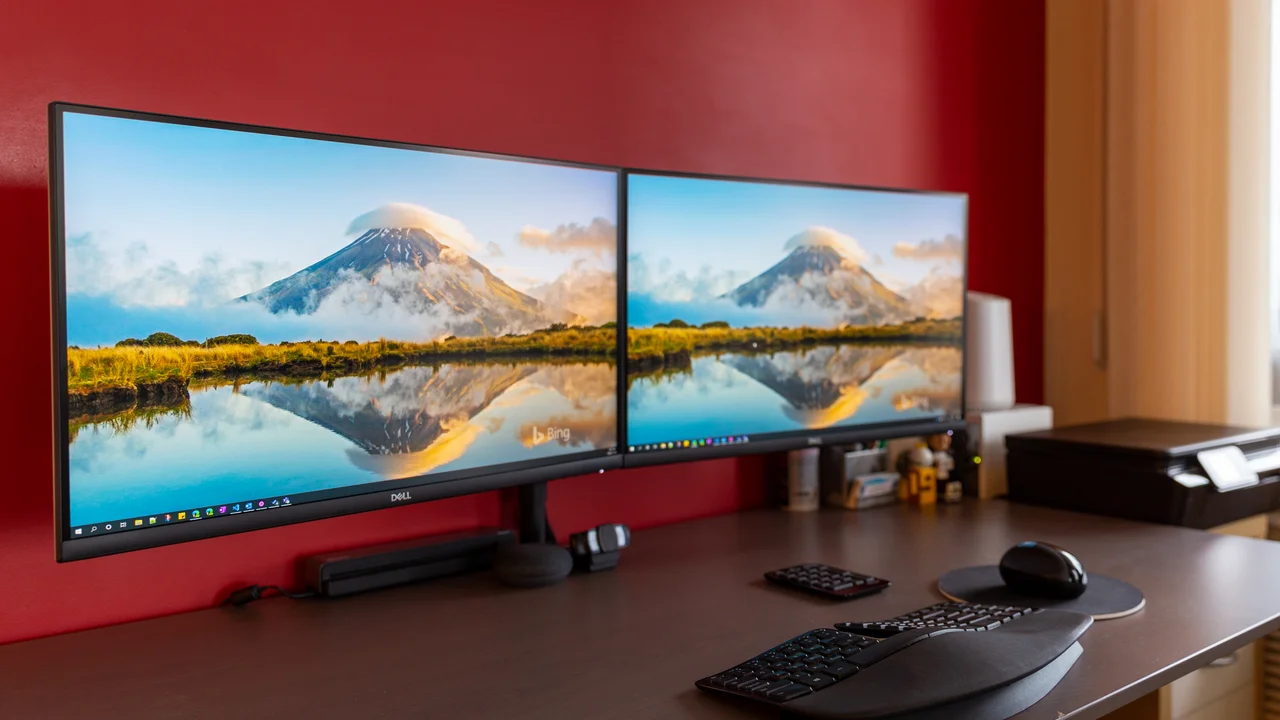
If you’re doing spreadsheet-heavy or multi-window work, don’t jump straight to a giant curved ultrawide. Two separate 24-inch or 27-inch monitors, side by side, often work better than one huge curved panel because you can angle each screen independently towards you. That’s a genuinely unfashionable opinion in a market that’s spruiking 34-inch curved ultrawides as the default upgrade, but the ergonomics argument is hard to beat: with two screens you can toe each one in slightly, which you simply can’t do with a single fixed curve.
Resolution, and why 1440p usually wins for office work
Resolution is where the gaming and productivity worlds genuinely overlap, just for different reasons. In gaming we care about resolution because it affects frame rates and how punishing a game is on your graphics card. For office work, resolution is about how much text you can see crisply before you need to squint or scale everything up.
At 24 inches, full HD (1920×1080) still looks fine. Stretch that same resolution to 27 inches or beyond and text starts looking soft, because you’ve got the same number of pixels covering more physical space. That’s why we generally point people at QHD, also called 1440p (2560×1440), for anything 27 inches and up. It gives you noticeably sharper text and more usable desktop space for side-by-side windows, without the scaling headaches that a 4K monitor can sometimes cause in older applications.
4K is lovely if you’re also doing photo editing or want a monitor that doubles for gaming on weekends, but for pure office work it’s often spending money on pixels you won’t consciously notice, especially at smaller sizes where Windows scaling can make some older desktop software look blurry or oddly sized until you fiddle with settings.
Panel type and brightness matter more than most spec sheets suggest
Retail spec sheets love to shout about refresh rate and response time, both of which are gaming metrics that do almost nothing for a document or a browser tab. What actually affects your day is panel type and brightness. IPS panels (in-plane switching, a technology that controls how the screen’s liquid crystals are arranged) give you better colour accuracy and far better viewing angles than the cheaper VA or TN panels still floating around at the bottom of the market. If you ever lean back in your chair and the colours on screen wash out, that’s a TN panel showing its age.
Brightness matters more than people expect, particularly if your desk sits near a window. A monitor rated around 250 nits (a measure of brightness) can look washed out in a bright room, while 300 to 350 nits handles daylight glare without you squinting or cranking brightness to an eye-straining maximum.
Ergonomics: the part everyone skips, then regrets
Here’s the mildly contrarian bit. We’d argue the stand that comes with your monitor matters more than the panel itself, and almost nobody checks it before buying.
A huge number of monitors, especially at the budget end, ship with a stand that only tilts. No height adjustment, no swivel, fixed at a height that assumes you’re sitting at a desk built for someone taller or shorter than you. That’s fine for a week. By month three, you’re hunching your neck forward or propping the thing up on old textbooks, and that’s exactly the kind of posture problem that turns into a genuinely sore neck and shoulders.
Look for a stand with height adjustment as a baseline. Tilt and swivel are nice extras. If the monitor you want doesn’t have decent stand adjustment built in, a separate monitor arm that clamps to your desk is often a better use of your money than upgrading the panel itself, and most modern monitors use a standard mounting pattern called VESA that makes this straightforward.
The general guidance from workplace health bodies, including Safe Work Australia’s guidance on office hazards, is that the top of your screen should sit roughly at or just below eye level, with the monitor far enough away that you’re not leaning in to read it. It sounds obvious written down. It’s astonishing how many home office setups get it backwards, with the screen too low and too close because the desk and chair were bought separately and nobody checked how they’d work together.
Do you actually need a high refresh rate for office work?
Short answer: no, but it’s not nothing either. A 60Hz monitor (meaning it redraws the image 60 times a second) is perfectly fine for email, spreadsheets, and web browsing. Where a higher refresh rate like 75Hz or 100Hz genuinely helps is scrolling. Long documents, busy websites, and dragging windows around all look noticeably smoother above 60Hz, and plenty of office-focused monitors now include this without charging a gaming-monitor premium.
What you don’t need is anything marketed specifically at gamers, with 144Hz, 165Hz or higher refresh rates and adaptive sync technologies built in. Those add cost for a benefit you’ll never use outside of a game, and gaming-focused panels sometimes compromise on colour accuracy or viewing angles to hit those speeds. If your monitor is purely for work, that’s money better spent on a proper monitor arm or a slightly better panel.
Connections and the practical extras that save you cash later
This is the boring bit that saves you buying adapters later. Check what ports you actually need before you buy. If you’re connecting a laptop, a monitor with USB-C that supports both video and charging means one cable does everything, power included, which is genuinely handy if your desk setup changes often.
A handful of monitors in the current Australian market also include a USB hub built into the stand, letting you plug a keyboard, mouse or external drive straight into the monitor rather than crawling under the desk to find a spare port on your laptop or PC. It’s a small thing until you’re the person searching for a dropped USB cable behind a filing cabinet for the third time that week.
If you’re running a modern laptop alongside this new monitor, it’s also worth checking your machine isn’t limping along on an outdated chip before you spend on peripherals. Our breakdown of Intel Lunar Lake vs Apple M4 vs Snapdragon X Elite is a reasonable starting point if you’re weighing up a new laptop at the same time as a monitor upgrade, since a sharp new screen won’t fix a processor that’s struggling with video calls and spreadsheets at once.
What this actually costs in Australia right now
At the time of writing, a solid 27-inch IPS monitor at 1440p with a height-adjustable stand generally lands somewhere around $350 to $550 from mainstream Australian retailers, depending on brand and brightness. Step down to full HD at 24 inches and you can find genuinely decent office monitors from around $180 to $250. Go up to 4K, or add a USB-C hub and a premium stand, and you’re looking at $600 upwards.
None of those are hard numbers, prices move around constantly and differ between retailers, but it gives you a rough sense of where the sensible middle of the market sits. We’d be wary of anything well under $150 for a primary work monitor; that’s usually where the TN panels, fixed stands and dim backlights live, and you’ll feel all three within a month.
If you’re setting up a whole new PC around this monitor rather than just adding a screen to an existing machine, it’s worth checking your operating system situation too. Plenty of older machines are either on borrowed time through Microsoft’s Extended Security Updates programme or genuinely due for replacement following the end of free Windows 10 support. Our Windows 11 compatibility guide covers what to check before you buy new hardware around an old PC.
Getting the pick right for your actual desk
If there’s one thing I’d tell a mate standing in an aisle staring at a wall of monitors, it’s this: ignore the gaming specs entirely unless you’re planning to actually game on it, and spend your attention on the stand, the resolution-to-size ratio, and how the thing feels at your eye level rather than how it looks on a shelf. A 27-inch 1440p IPS panel on a height-adjustable stand covers the vast majority of home and office needs without overspending on refresh rates you’ll never notice doing invoicing.
And if gaming is genuinely part of the plan for evenings and weekends, it’s worth reading up separately on what actually matters for that use case. Our guide to the best 4K gaming monitors in Australia covers the refresh rate and response time side of things properly, because that’s a genuinely different buying decision from the one you make for spreadsheets and emails during the day. Standards Australia also publishes general workplace equipment guidance worth a skim if you’re setting up a permanent home office, via the Standards Australia homepage, for anyone wanting the more formal version of what we’ve covered here.
Featured image: AI-generated illustration.